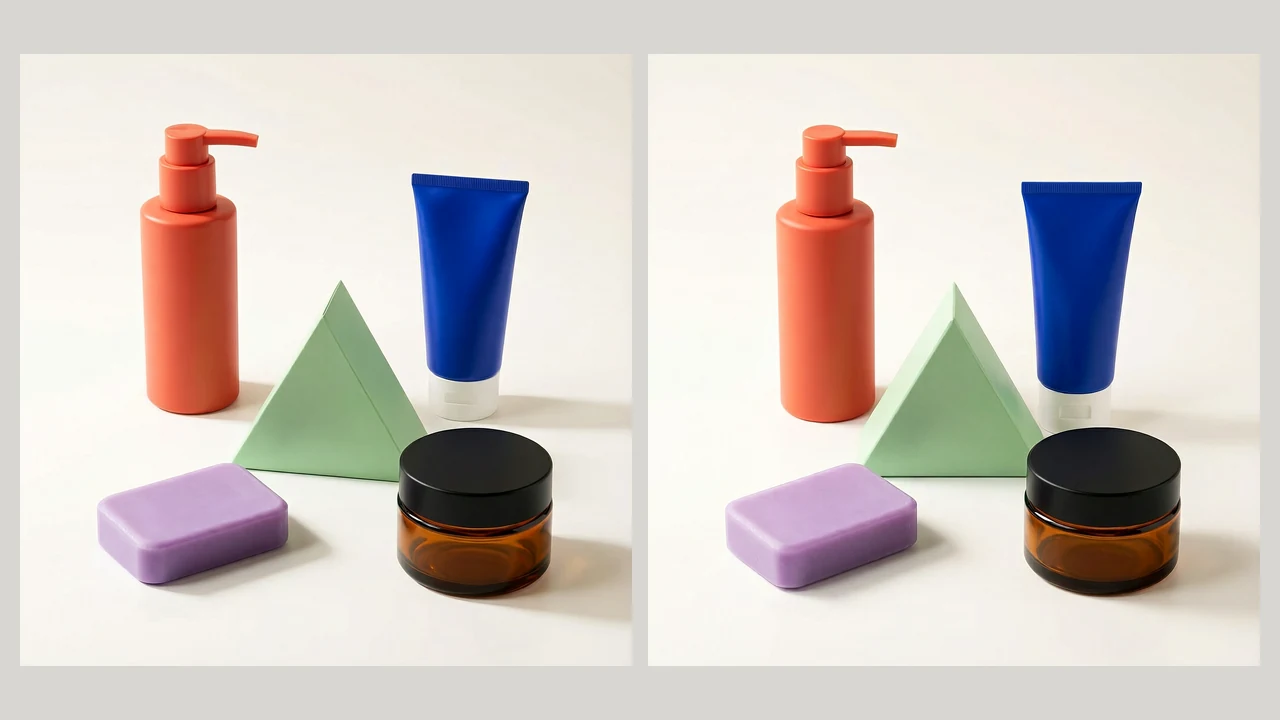
Both MiniMax H3 Image outputs showed five products once each and met all eight checks for relative position. Adding a sixth reference and one sentence showed no placement improvement. The jar in the foreground hides part of the mint carton in both images.
In the three eight-input edits, swapping Picture 7 turned the green bottle into a red ceramic jug, and swapping Picture 8 turned the blue cup into a controller. The jug and blue cup in B landed near the lower edge of the placement window.
1. Compare the two first outputs
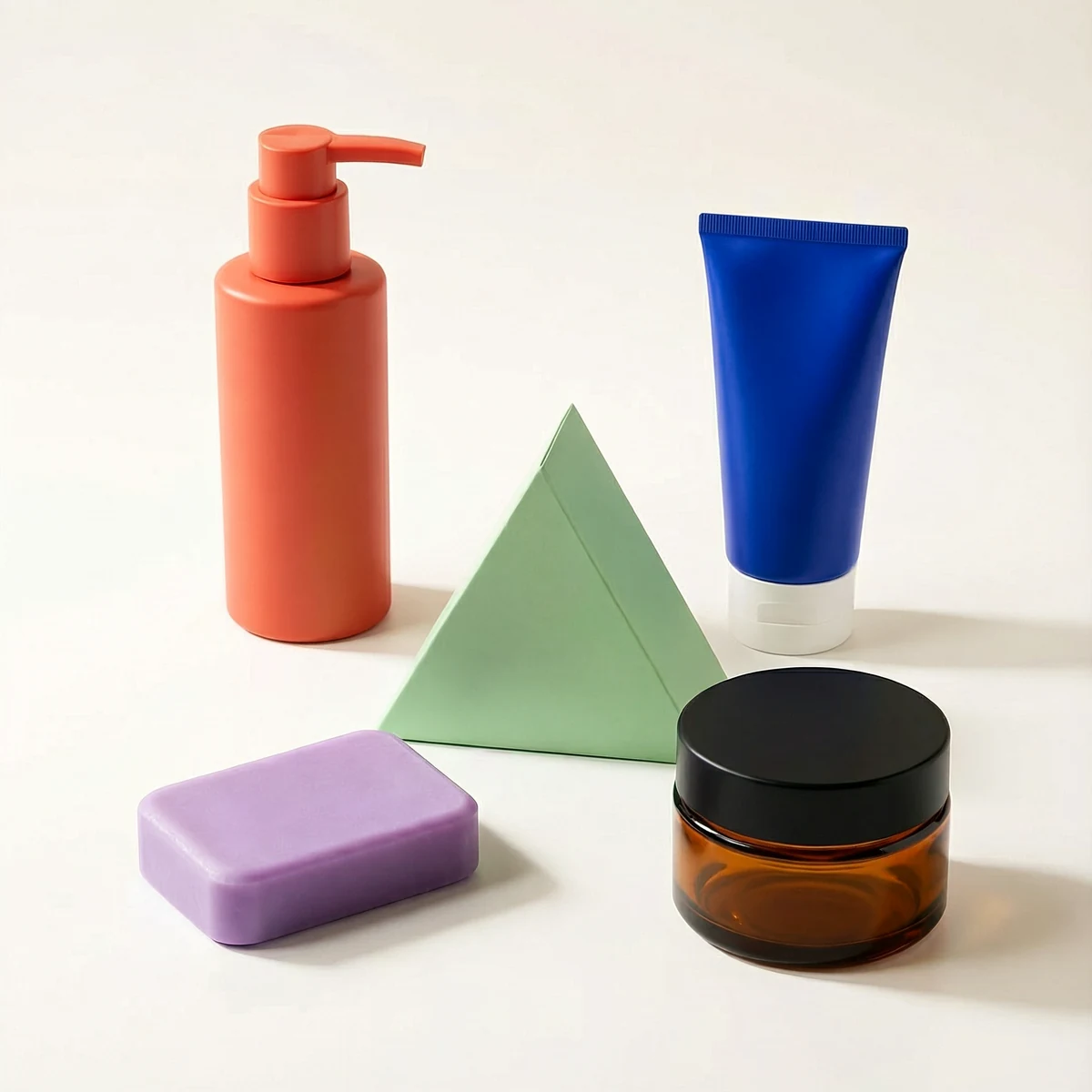
A · Five product references
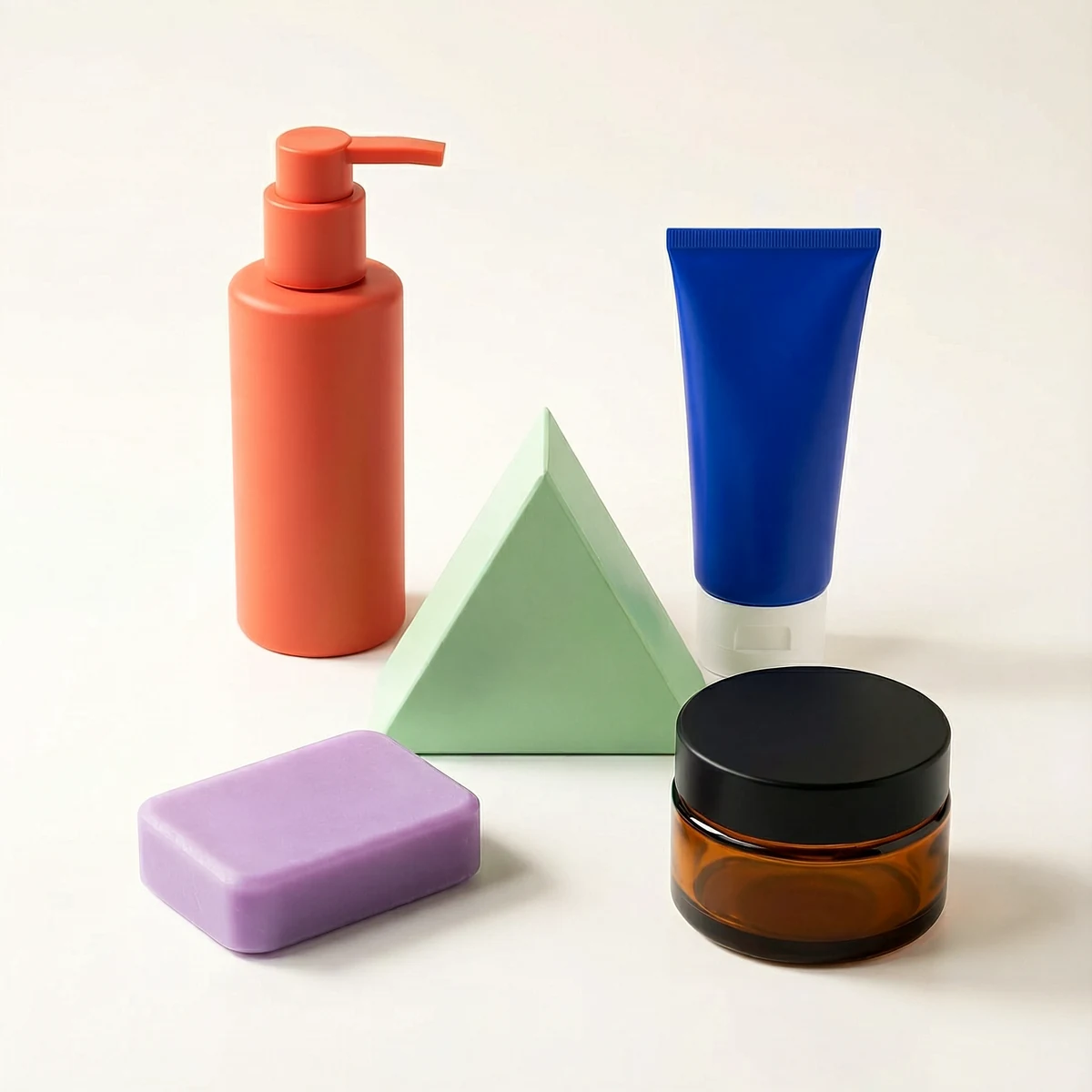
B · Five products and the placement guide
Both previews show the full frame.
- A · Full-size PNG (4,363,144 bytes)
- B · Full-size PNG (4,395,768 bytes)
Both outputs independently decoded as 2048 × 2048 RGB. The raw PNGs were 4,408,416 and 4,441,392 bytes. Downloads omit text metadata and preserve the pixels.
What both images show
All five products are recognizable and appear once in each image:
- Coral bottle with a right-facing pump.
- Round amber jar with a black lid.
- Cobalt-blue tube with a ribbed top and white cap.
- Mint-green carton with a triangular face. B exposes more of a pale-green sloping face.
- Lavender soap with a rounded rectangular outline.
Judging the visible centers, both place the pump above-left of the carton, the tube above-right, the jar below the tube and right of the soap, and the soap below-left of the carton. The carton sits between the back and front pairs. Both show a warm-white setting and contact shadows. All five are inside the canvas. No visible dots, extra props or text appear.
Overlap remained. Soap covers the carton’s lower-left edge and the jar lid covers its lower-right edge in both. A leaves a narrow gap between the lid and tube cap. In B, the lid covers part of the cap’s lower edge. Both need rearranging if every item must be fully visible. Exact shape and color fidelity were unmeasured.
A user recognized all five objects in their image, but the requested spiral came back more like a vertical stack. A reply suggested adding a rough position guide, which prompted this comparison. User discussion · MiniMax Design
2. Prepare the five product references
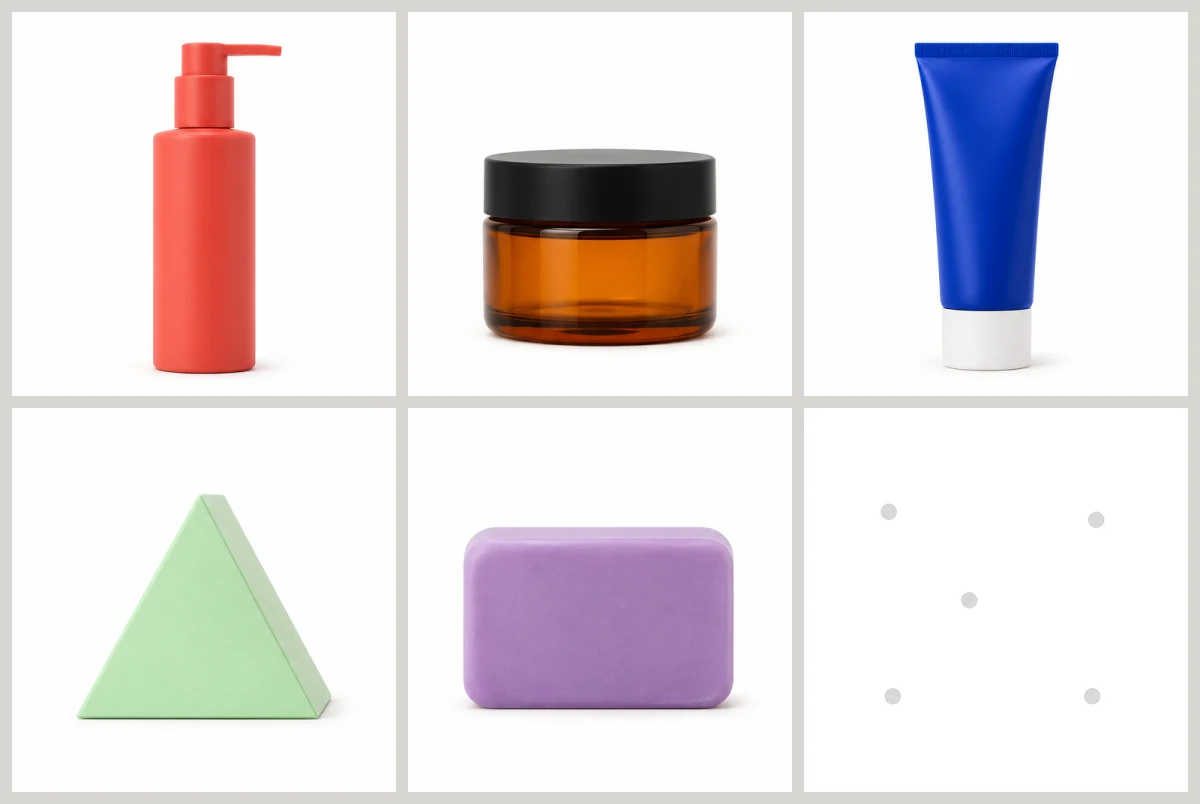
Read left to right across the top row, then the bottom. Upload the individual files below.
The five fictional, unbranded products are original-scale crops from one ImageGen grid. Each product upload is a 512 × 512 lossless WebP.
| Picture | What it supplies | Download |
|---|---|---|
| 1 | Coral pump bottle | Download WebP |
| 2 | Round amber jar with a black lid | Download WebP |
| 3 | Cobalt-blue squeeze tube with a white cap | Download WebP |
| 4 | Mint-green triangular-prism carton | Download WebP |
| 5 | Lavender rounded-rectangle soap bar | Download WebP |
| 6 · B only | Five gray placement dots on white, 768 × 768 | Download PNG |
The ImageGen source grid has SHA-256 d37860f98928fa741a8b43bebb4247a28e78742400e36ef508b5ab6ae7a8b204. Put the dot guide last for B. It gives positions without labels or product shapes.
3. Run A with five pictures and B with six
Use this complete English prompt for A:
Create one original warm-white studio catalog photograph showing exactly five distinct products, one from each reference: the coral pump bottle from Picture 1, the round amber jar with a black lid from Picture 2, the cobalt-blue squeeze tube with a white cap from Picture 3, the mint-green triangular-prism carton from Picture 4, and the lavender rounded-rectangle soap bar from Picture 5. Keep the shape and color of each product. Keep all five fully in frame and separate, with no overlaps. In the image, place the pump bottle above and to the left of the green carton and the blue tube above and to the right of the carton. Place the amber jar below the blue tube and to the right of the soap. Place the soap below and to the left of the carton. Set the carton between the front and back groups. Use natural contact shadows. Add no extra props or text.For B, start again from the same five files in the same order, add Picture 6, then append a space and this sentence to the complete A prompt:
Use Picture 6 only as a position guide; keep its gray markers out of the photograph.The isolated edits used the adapter and template whose SHA-256 hashes matched active production source on November 18, 2026 at 19:02 Beijing time. Both used KSampler seed 2026111859 and the same other template settings. We kept the first image per request. No production orders or billing ran. The expanded prompts differed (1,206 vs. 1,471 bytes). The pair compares the guide and sentence together. The guide’s separate effect and repeatability remain unknown.
The edit adapter SHA-256 was 9fe41fad34be42081fa78356784e10ab662b8896be4e2ffd258516cefad7c7a1 and the template SHA-256 was 9df65ebe2c26297744c54503142453df66bf0897d3620af5199c1be5f9adcbe6. The website may run with different seeds and runtime conditions.
4. Try the two reference sets in the image workspace
- Download the five WebPs and, for B, the five-dot PNG.
- Open the MiniMax H3 Image workspace, sign in, select Edit Image, and upload the product files in order. Keep the guide in slot 6 for B.
- Choose 1:1 and 1 image, paste the matching English prompt, wait for the files to finish uploading, then check the displayed credit quote and balance before selecting Edit image.
- Start both requests from the original inputs and inspect both PNGs at full size.
This independent workspace accepts up to 8 input images, including the original. MiniMax Design and the official image-editing API document up to 16 for their own services. MiniMax Design · Official image-editing API
5. Do the 7th and 8th references affect a MiniMax H3 Image edit?
Both single-slot swaps changed the recognizable product. Replacing Picture 7 changed the bottle to a jug. Replacing Picture 8 changed the cup to a controller. The jug and cup in B landed around the lower edge of the placement window.
In this follow-up, each request used eight inputs. Pictures 1–5 were the same five product photos from the reference table. Picture 6 was the same five-dot guide and applied only to those five products. We asked for Picture 7's product at middle left and Picture 8's at middle right. The same prompt specified their positions without describing either product's appearance.
| Eight-input set | Picture 7 · middle left | Picture 8 · middle right |
|---|---|---|
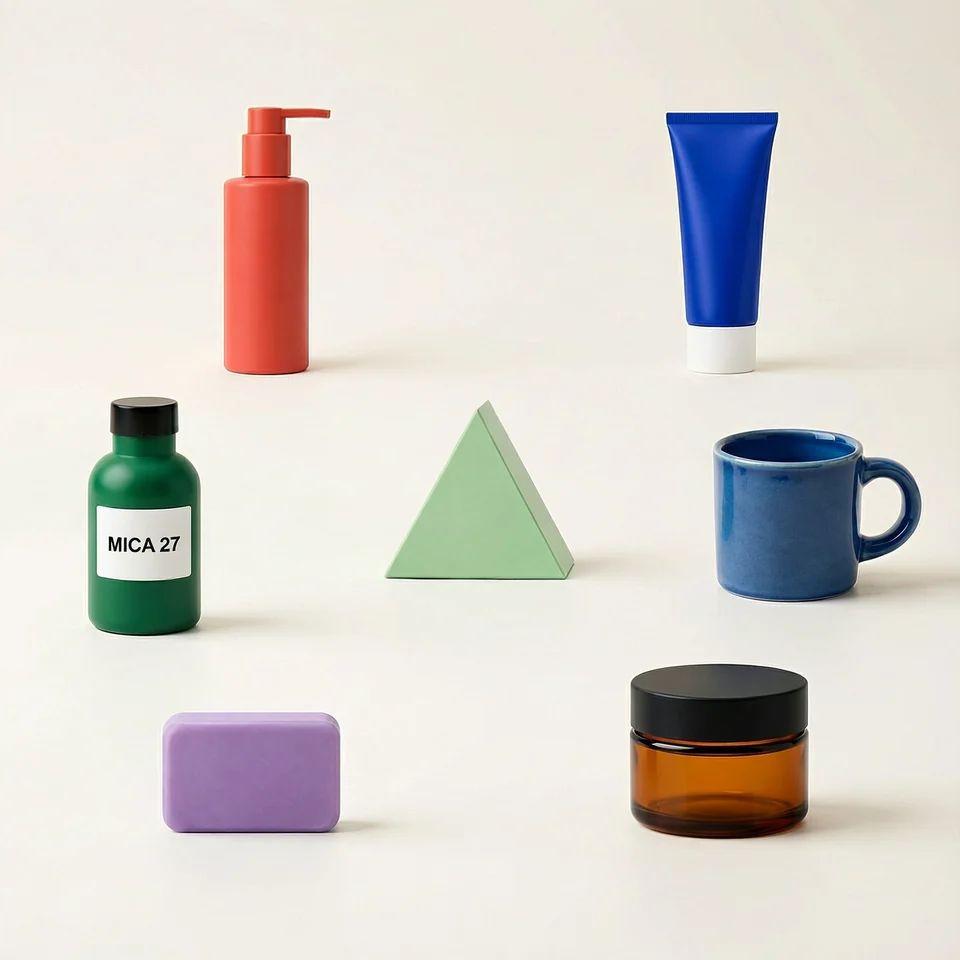
| A · Baseline | MICA 27 bottle · WebP | Blue cup · WebP |
| B · Replace Picture 7 | Red ceramic jug · WebP | Same blue cup as A |
| C · Replace Picture 8 | Same MICA 27 bottle as A | Controller · WebP |
For a numbered overview, see the actual input thumbnails.
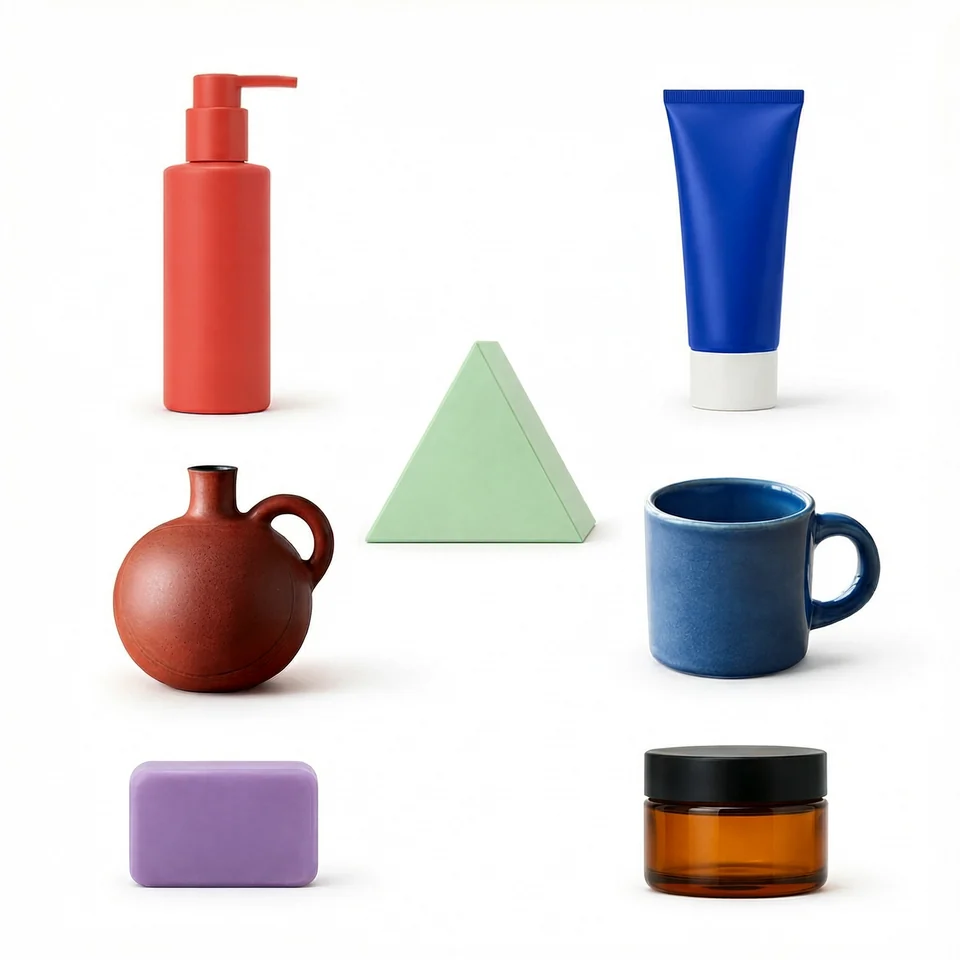
B · Picture 7 replaced with the red jug
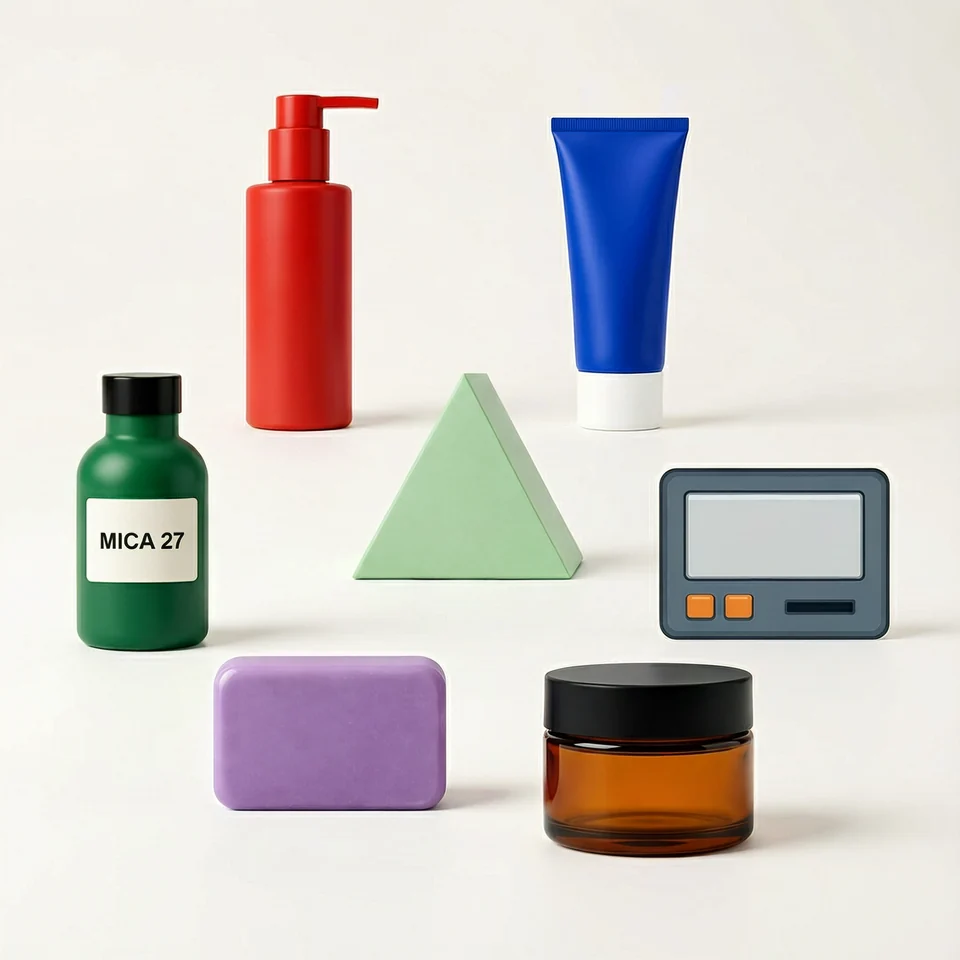
C · Picture 8 replaced with the controller
The three complete outputs are shown as 960 × 960 WebP previews. Review the original-size files for the bottle label and spacing.
| Comparison | What changed in the requested area | What happened to the unchanged reference |
|---|---|---|
| A → B · Replace Picture 7 | The green bottle was replaced by a red jug with a round body, open neck and right loop handle. Its center was about 60.3% down the image. | The blue mug was still recognizable, with a wide opening and right handle. Its center was about 60.2% down. |
| A → C · Replace Picture 8 | A rounded controller with a screen and two buttons replaced the blue cup in the middle-right area. | The dark-capped green bottle stayed in the middle-left area. Its label still read MICA 27. |
All three first outputs showed seven distinct products once each, with no obvious overlap or crop. The green bottle label was readable in A and C. The center positions in B were estimated visually around the pre-set 60% lower boundary, so we did not count B as a strict placement pass.
We used the same edit workflow, one 2048 × 2048 output per request and KSampler seed 2026111859 in an isolated run. For each comparison we checked the object's shape, position and count separately. When an object was recognizable outside its requested area, we recorded the placement error. If overlap made it impossible to tell, we recorded it as unclear. The workflow history showed all eight files attached to the image conditions and to prompt expansion. The three expansions differed despite the same submitted text. The comparison covers this isolated end-to-end workflow, including expansion. Exact pixel preservation and repeatability remain untested.
On November 19, 2026, a separate signed-in browser test prepared all eight Set A images in the public workspace. The test resumed in a new signed-in session with those same prepared inputs and generated one 2048 × 2048 PNG. The edit used 4 test credits without a payment. The workspace sets the seed automatically, so a new result may differ from the examples above.
Try one of the eight-input sets
Try Set A in the image workspace. On the example card, choose to load the draft and confirm. This fills in the eight Set A references in order, the original test prompt, and the settings for a 1:1 edit with one output. Sign in and select Prepare example images. When all eight uploads finish, check the current credit quote and your balance before you submit the edit.
- Pick A, B or C in the table. In the first reference table, download Pictures 1–5 and the five-dot Picture 6. Download the two files for Pictures 7 and 8 from your chosen row.
- Open the MiniMax H3 Image workspace, sign in and choose Edit Image. Upload Pictures 1 through 8 in order and check the numbers beside the thumbnails.
- Select 1:1 and 1 image. Paste the English prompt below, wait for all eight uploads to finish and check the credit quote and balance before selecting Edit image. To compare sets, start each request with its original inputs. Check the full-size PNG for both product shapes, their positions and any overlap.
Create one square warm-white studio catalog photograph with exactly seven distinct products, one from each of Pictures 1–5, 7 and 8. Use Picture 6 only as a five-point placement guide for Pictures 1–5. Place the product from Picture 1 at upper left, Picture 3 at upper right, Picture 4 near the center, Picture 5 at lower left, and Picture 2 at lower right. Place the product from Picture 7 at middle left and the product from Picture 8 at middle right. Keep each whole silhouette and its distinctive details visible, with clear gaps between products and space at every edge. Keep the original product markings where visible. Leave out the guide dots and add no props or scene text.