Generate a still image from a text prompt, or upload an original and tell MiniMax H3 Image what to keep or change. Each edit can use up to 8 images, including the original. Check the credit cost before you submit.
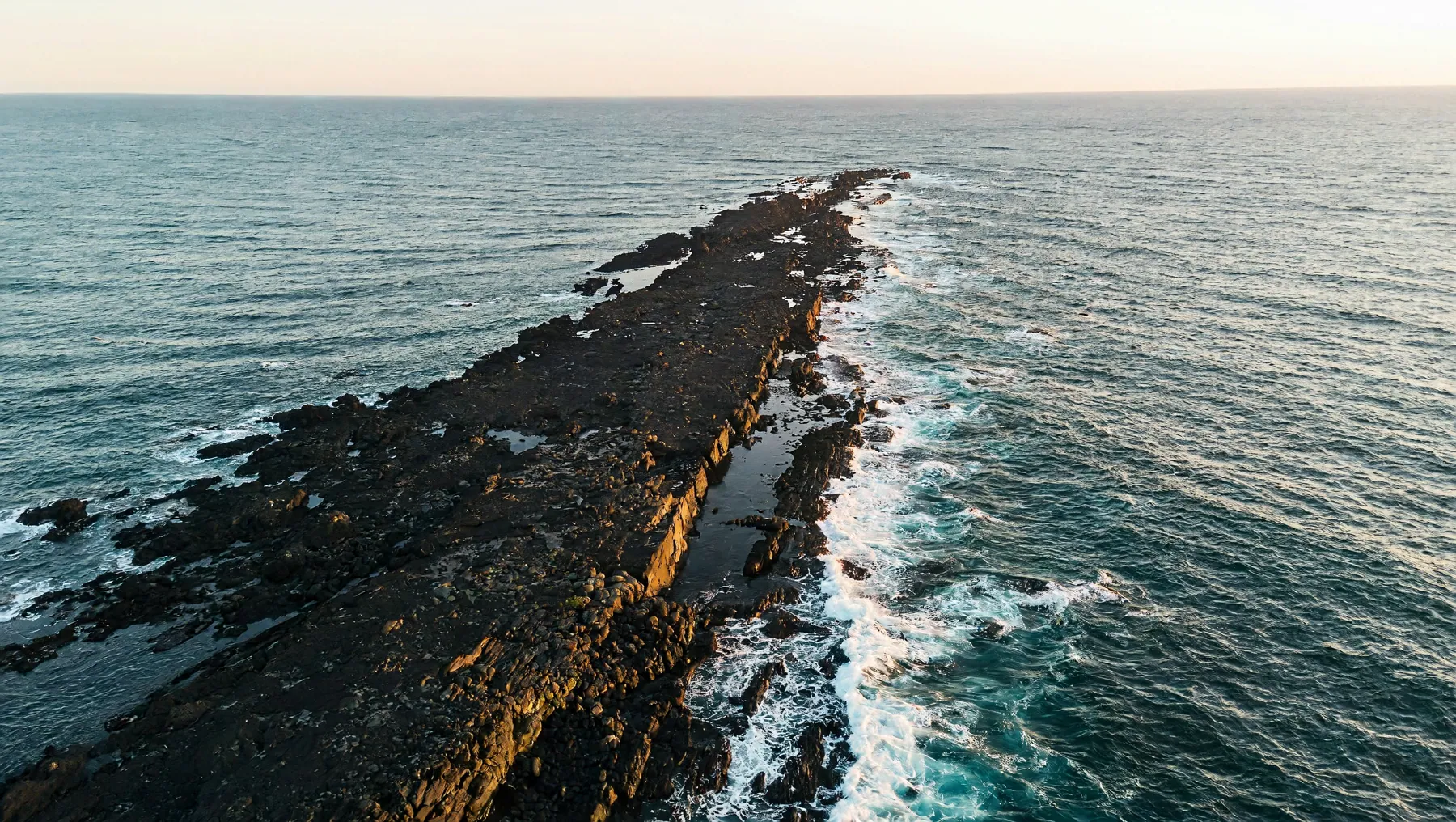
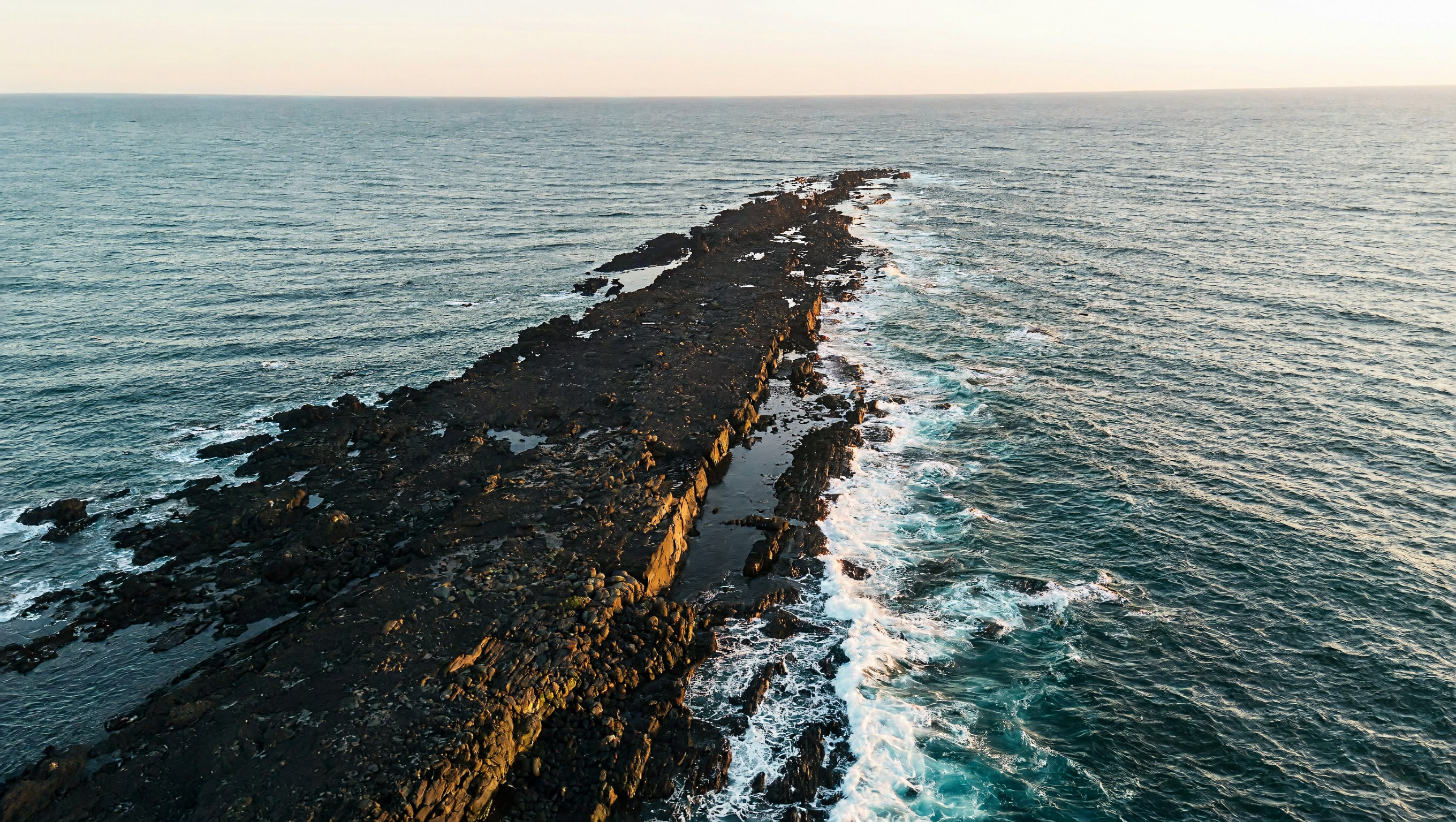
A cinematic editorial aerial photograph of a black basalt coastline at dawn, seen at a downward angle from a drone. A long diagonal headland runs from the lower left into the distance; translucent turquoise water and lace-like white surf curl against dark angular rock. A narrow band of amber side light touches the wet edge of the headland, with cool atmospheric depth on the horizon. Carefully balanced asymmetrical composition, fine water and rock textures, clear tonal separation, natural color, no buildings, no lettering, no border.
A translucent bell and fine tentacles stand out against indigo water.Output · 1728 × 2304
A glowing jellyfish underwater
A portrait-format text-to-image example with a translucent subject against deep blue water.
What to checkThe bell glows at the edges and thin tentacles remain visible in the dark water. Some extend out of the frame.
A portrait-format underwater macro photograph of one luminous moon jellyfish suspended in deep indigo water. Its delicate translucent bell glows soft periwinkle and cyan, fine long tentacles curve naturally down in a continuous sweep, with faint pink iridescence along the rim. One narrow shaft of cool light enters from above left, scattered tiny marine particles, deep blue-violet background with a subtle gradient and ample negative space, dramatic but believable underwater lighting, crisp detail on the bell, no lettering.
1.Original map of fictional Larkspur Harbor with the viewpoint marked on the central pier.
Concept view from the central pier at dusk.Output · 2720 × 1536
Turn a harbor map into a pier-level view
Use the map of a fictional harbor as Picture 1 and ask for a concept view from the marked point on the central pier.
What to checkThe lighthouse is on the left. The berths are on the right, with the bridge beyond them. In the result, the bridge meets the central pier, a connection absent from the map.
Use <Picture 1>, an overhead map of a small fictional harbor, as a spatial guide for a cinematic photorealistic concept view at warm dusk. Render from the map’s marked viewpoint on the central pier, at standing eye level looking north out of the harbor. In the foreground see the timber decking leading away from the camera and the mooring berths on the right, one small boat beside the right floating dock. The harbor’s pale stone lighthouse is across the water on the LEFT rocky headland in the middle distance. The low pale arched pedestrian bridge is farther ahead on the RIGHT, crossing a narrow inlet just behind and to the right of the berths. Do not put the bridge behind the lighthouse. Open sea and a warm fading horizon straight ahead between the left headland and right breakwater. A small amber lamp glows on the lighthouse, reflected in blue-green water. Emphasize near, middle and far depth. Natural warm cinematic dusk lighting, credible coastal architecture and weathered timber, calm clear atmosphere. Do not render the overhead view, map graphics, arrows, labels, lettering, or any inset.
1.AI-generated source image on a gray studio set.
The edit replaces the gray tabletop and backdrop with teal.Output · 2496 × 1664
Change a product photo’s background
Use the studio image as Picture 1. Ask to keep the jug’s shape and angle while replacing the tabletop and wall.
What to checkThe open rim, right-hand loop handle, and overall silhouette remain recognizable. The set changes from gray to teal, with differences in the glaze texture and lighting.
Edit <Picture 1>. Keep the original vermilion red ceramic jug unchanged: its round silhouette, open neck, single right-side loop handle, grooves at its foot, scale and exact three-quarter angle must stay the same. Preserve its location and the original crop. Change only the gray table to a flat matte jade-teal plinth and the gray wall to a soft blue-green studio backdrop. Maintain realistic contact shadow and soft side light, preserve the red glaze and its texture, leave the whole product visible and add no props, no text.
1.Base room for the camera angle, door, window, and floor.2.Chair reference for the leather and exposed wood frame.3.Rug reference for the colors and checkerboard pattern.
The chair and rug are placed inside the original room.Output · 2496 × 1664
Furnish an empty room with three references
Use Picture 1 for the room, Picture 2 for the chair, and Picture 3 for the rug. Name the role of each image in the prompt.
What to checkOne chair and one rug appear in the result. The oak door is still on the left, the tall window is on the right, and the plank floor is visible around the rug.
Create one photorealistic interior from these three ordered references. Use <Picture 1> as the exact base photo: keep its camera position, framing, pale apricot limewash, existing oak door on the back left, single tall window on the right and the existing warm plank floor. Use <Picture 2> as a product reference and add exactly one cognac-brown leather lounge chair with the same exposed dark walnut frame, centered just right of the middle and gently turned toward the camera. Use <Picture 3> as a product reference and add exactly one flatwoven cream-and-rust checkerboard rug on the floor under the chair, its front and side edges clearly visible in the foreground. Both new objects must fit naturally into the room's perspective and scale, with believable floor contact and shadows. Keep the original architecture visible. Cool window light against warm room surfaces. Add no other furniture, objects, people or lettering.
NIGHT SIGNAL appears in yellow above a circular speaker graphic on a violet-blue field.Output · 1728 × 2304
Generate an event poster with a short headline
Use a single text prompt to set the poster’s colors and layout and specify the exact headline for a fictional music event.
What to checkThe headline reads NIGHT SIGNAL on one line near the top. Check the spelling and that the yellow type remains readable at phone size.
Create a striking portrait-format two-ink screen-printed event poster for a fictional independent evening music event. Deep saturated cobalt-violet paper with warm neon lemon-yellow ink. One huge circular stylized yellow speaker cone in the center, concentric rippling sound rings fading into a halftone pattern, editorial graphic design, confident clean grid, and subtly tactile ink grain. The only visible text on the entire poster must be the exact two words NIGHT SIGNAL, set on one line in large, highly legible heavy yellow uppercase sans-serif type near the top, with generous margins. Spell NIGHT SIGNAL exactly. No other letters, numbers, text, dates, logos, or signatures. Leave space around the headline. Keep the graphic bold and uncluttered.
Try a near-frontal view of the jug
Load the original jug reference and the complete A prompt as an Edit Image draft: 3:2, one image. Review the draft, sign in, then select Prepare example images. Wait for the upload to finish, check the current quote and your balance, then select Edit image. Loading does not submit a generation task or use credits.
The workspace has no seed control. A new edit may differ from the published result; check the jug’s shape and handle in your output.
Load the portrait first and the MIRA 27 bottle second, with the tested prompt and settings: Edit Image, 1:1, one image. Sign in and select Prepare example images. After both uploads finish, check the quote and submit when ready.
Opening this section keeps your current draft. Load Set A to fill in the original prompt and all eight references in order, with Edit Image, 1:1 and one output selected. After signing in, select Prepare example images. Wait for all eight uploads, check the quote and your balance, then select Edit image. The workspace sets the seed automatically, so your result may differ from the published example.
Choose Text to Image and describe the subject, setting, and light. For Edit Image, upload the image you want to change first.
Write the instruction and check the cost
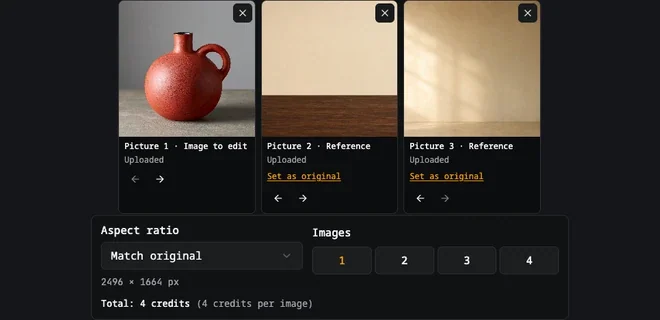
Say what to keep and what to change. Refer to uploads by number, choose an aspect ratio and 1–4 outputs, then check the total credit cost.
Review, download, or edit again
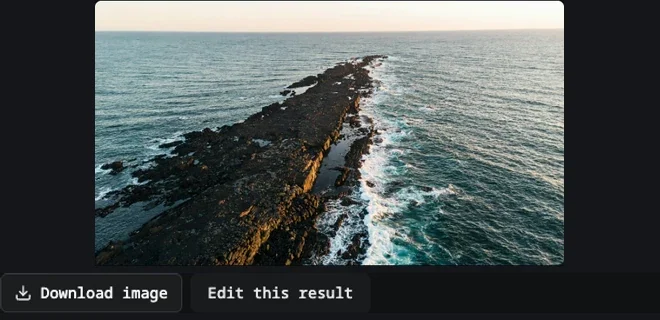
Check the composition in the preview. Download the PNG to inspect lettering and fine details at its original size, or choose Edit this result to make another change.
Run the MiniMax H3 Image workflow in ComfyUI
This browser workspace handles uploads, settings, and downloads for you. To run the model in ComfyUI, start with its separate Text to Image or Image Edit template.
About 4 MP per image, including 2048 × 2048 for a square. An edit can use up to 8 inputs, including the original. Request 1–4 PNGs per run.
MiniMax model and API
The official model can produce native 4096 × 4096 images (about 16 MP). The MiniMax API documents a 4K area setting and accepts up to 16 images per edit request.
Choose Text to Image to start from a prompt, or Edit Image to upload an original. For an edit, put the image you want to change in slot 1. Name any other references by number and say what to keep or change.
How many images can I upload and generate per run?
An edit accepts up to 8 inputs, including the original. Each run can produce 1–4 downloadable PNGs. Choose 1:1, 3:2, 2:3, 16:9, 9:16, 4:3, or 3:4. In Edit Image, Match original uses the source ratio when it falls between 1:3 and 3:1. PNG format alone does not guarantee transparency. Our isolated H3 test returned an opaque PNG; the separate FFmpeg cutout made some foreground highlights transparent. Inspect the PNG and separate cutout test
What are the MiniMax H3 Image reference image upload limits here?
This workspace accepts JPEG, PNG, and WebP still images. Each file can be up to 10 MiB (10,485,760 bytes) and contain up to 25 million pixels (width × height). If your image exceeds the pixel limit, reduce its width and height before uploading. See how to check file size and pixel dimensions and resize an image.
How do I tell the model what to use from each reference?
Name the picture number and the detail to use. For example, keep the room and camera angle from Picture 1, add the chair from Picture 2, and borrow the rug texture from Picture 3. Check the numbering after moving or removing an image. See the result and full prompt from a room edit with three reference images.
Does MiniMax H3 Image on this site support mask or brush edits that lock pixels outside the selection?
This workspace does not offer a mask or brush selection tool. Upload the full image and describe what to change and what to keep. Prompt-guided editing can redraw other areas; pixels outside the intended edit are not guaranteed to stay unchanged. Before using the result, download it and inspect the whole image at its original size. If you need exact pixel preservation, use a conventional image editor for a separate selection-and-compositing step and verify the final pixels. See one original-versus-previous-result editing comparison
Can I make a 4K image here?
The standard output in this workspace is about 4 MP, such as 2048 × 2048 for a square image. The specifications above show the 4K option in MiniMax’s official model and API.
How much does a run cost?
Text to Image costs 3 credits per output image. Edit Image costs 4 credits per output image. Generating or editing requires an account and credits. The workspace shows the current total before you submit. The service returns the credits for each output it marks as failed. Adding reference images to the same edit does not change its credit quote. Requesting more output images does.
Can I try MiniMax H3 Image without buying credits or a subscription?
Viewing and loading the public examples does not require sign-in or use credits. Submitting your own generation or edit requires sign-in and enough available credits for the displayed total. If your balance covers it, you do not need to buy credits or subscribe. Eligible new accounts may receive welcome credits; check your credit history for the amount granted and its expiry. For a one-time top-up, the Starter Pack under “Pay as you go” costs USD 9.90 for 500 credits. You pay for the full pack. Compare credit plans
Can I turn the result into a video?
Download the PNG. In the video generator, choose Image to Video and upload the PNG as your starting frame. Open the image-to-video tool
Can I use MiniMax H3 Image results commercially?
Credits pay for processing. Commercial use depends on the applicable terms and permissions. Subject to applicable law and our Terms, we do not claim ownership of your outputs. Outputs may resemble other users’ results and may not qualify for copyright or exclusive rights. Before use, check the necessary rights and consent for source images, trademarks and people’s likenesses, plus applicable upstream model use and territory restrictions. Terms of Service (sections 8–9) · MiniMax H3 Image model license
Start with your idea or your first photo
Write a prompt for a new image, or upload one you want to change.