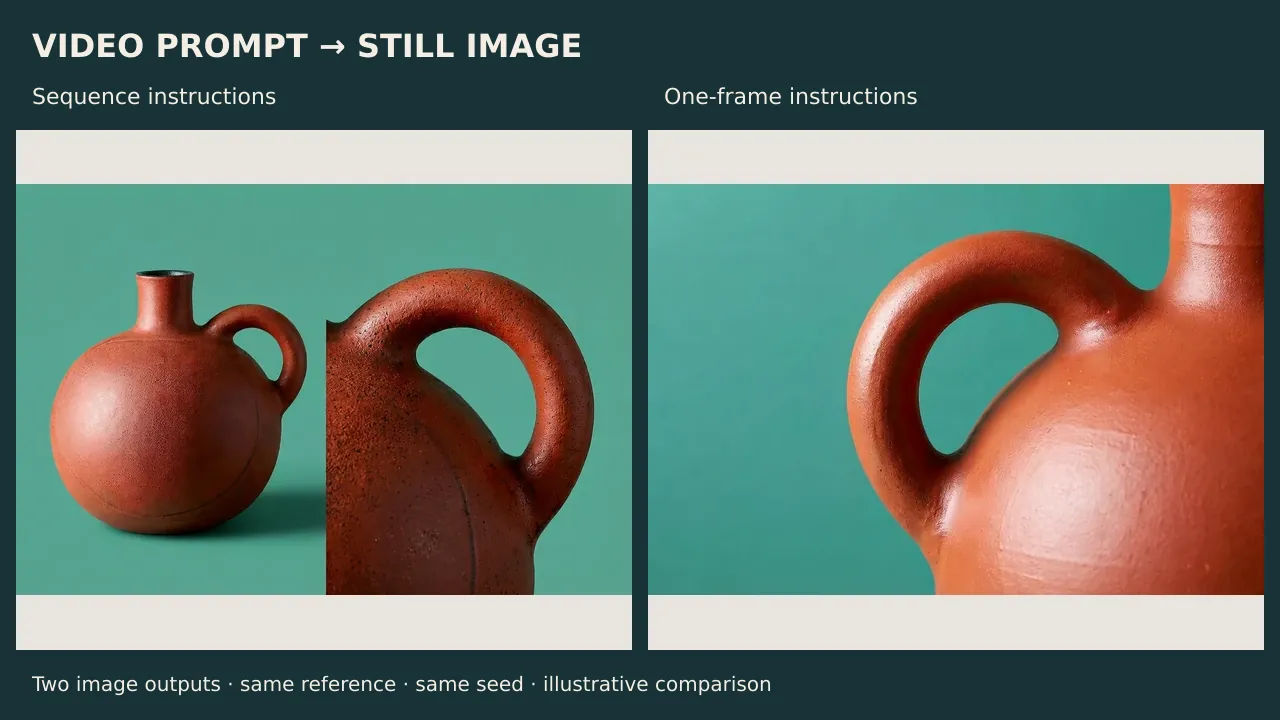
A two-shot video prompt gave MiniMax H3 Image one picture with the complete jug on the left and a handle close-up on the right. Rewriting it as one still photograph produced a single close-up, but the handle moved from the reference’s right side to the output’s left side. Below are the two complete prompts and the outputs from this single pair of requests.
For your own image, choose the view you want to keep before rewriting the prompt. Open MiniMax H3 Image, select Edit Image, upload your reference and describe what belongs inside that one frame. If you want the wide view followed by the close-up over time, use the two-shot video tutorial instead.
The cover places output A on the left and output B on the right for comparison. The two views inside A were already present in its generated image.
1. Start with the same reference image
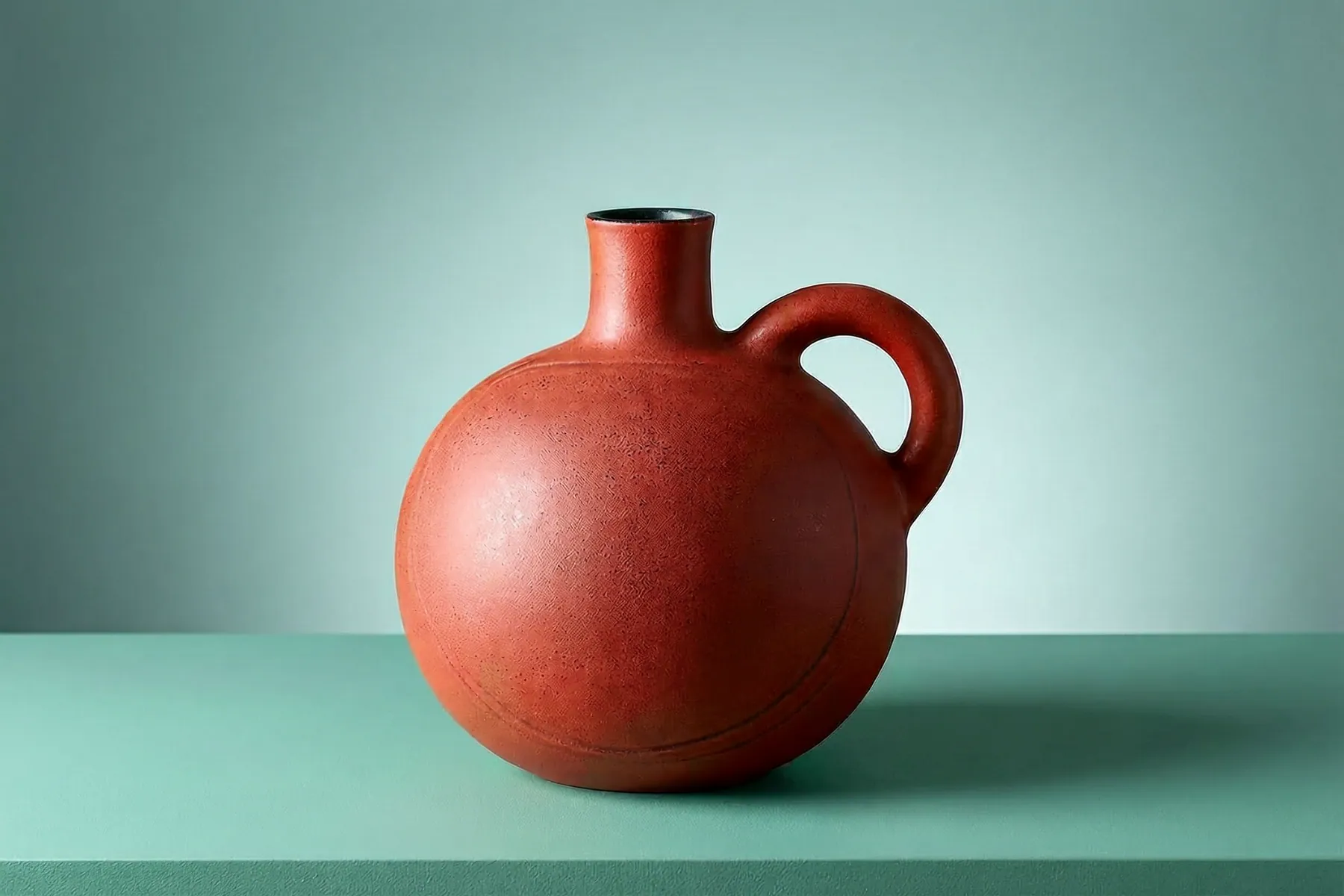
Download the original ceramic-jug PNG. This 2496 × 1664 image comes from our own earlier ceramic editing example. It is the visual reference for both edits here, including the glaze, handle and teal background.
The internal experiment converted that PNG to a WebP reference and submitted the same reference to both requests. You can upload the downloadable PNG in the workspace; that manual route does not use identical input bytes to the internal run.
On November 14, 2026, we requested one MiniMax H3 Image edit per prompt, with 2496 × 1664 requested dimensions and seed 352161. Each version ran once. The seed was an internal experiment setting; it is not a step to find in the workspace. We did not rerun either prompt to check whether a fixed seed reproduces the image, and this pair does not establish a success rate or compare different models.
2. What happens when a video sequence is sent to an image editor?
Prompt A was copied from our own two-shot video request. It asks for a wide view, a hard cut and a detail view in sequence:
Two shots of the same glazed ceramic jug on the teal background. Shot 1: hold a static wide front view of the complete jug for the first two seconds. Then make one hard cut. Shot 2: hold a tight close-up of the single handle and its attachment to the body. Keep the same glaze and teal background. No camera push, dissolve, new objects, or text.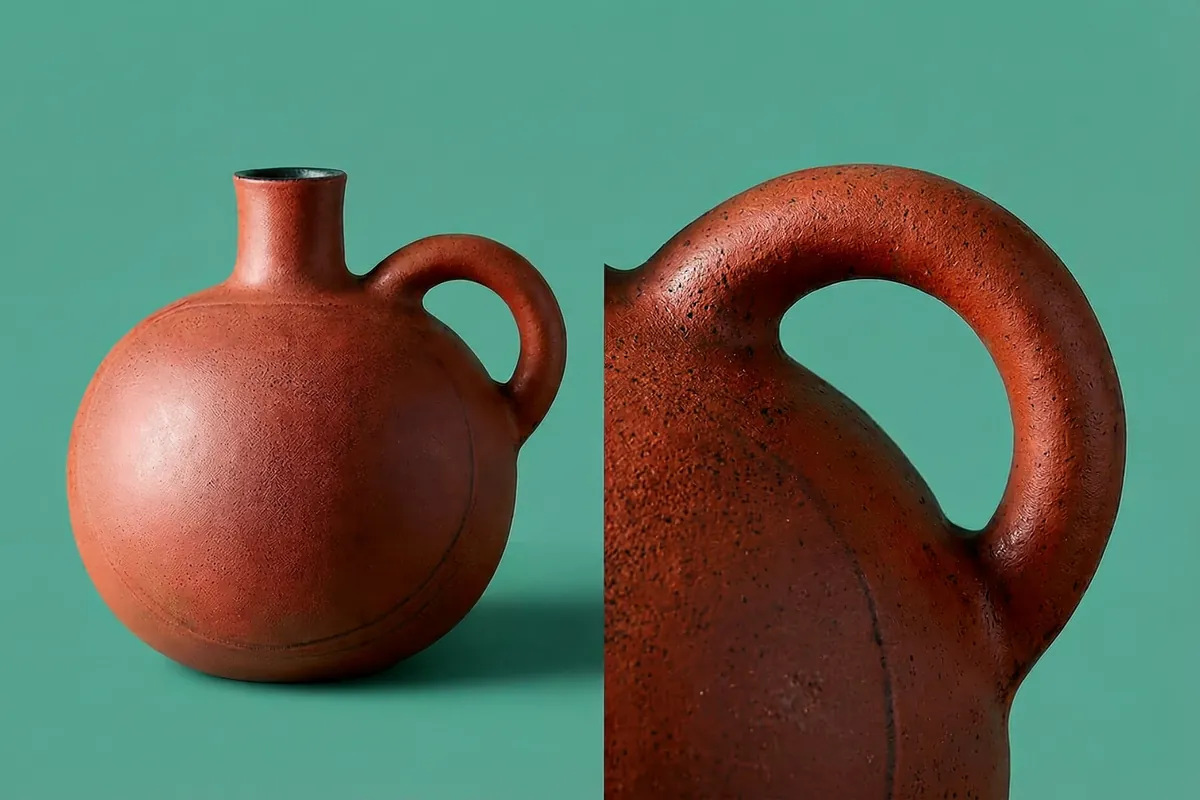
This is the actual image output, shown as a compressed WebP preview. We did not arrange two separate outputs into this layout. The picture contains both requested views side by side, with a vertical division near the center. It is not a video, and the division is not a timed hard cut.
Video prompts can describe how a view changes over time. For example, the Seedance 2.0 official guide separates scene content from the order of events and camera movement. That is useful video guidance, but it does not show what an image editor will do with the same wording. This experiment used MiniMax H3 Image, not Seedance.
3. Rewrite the request around one visible composition
For Prompt B, we chose only the handle close-up. The full prompt was:
One still product photograph of the same glazed ceramic jug on the teal background. A tight close-up of the single handle and its attachment to the body. The curved handle and its attachment fill the frame. Only part of the jug body is visible. Keep the same glaze and teal background, with no new objects or text.The change was more than replacing a camera term:
| Removed from A | Added or made explicit in B |
|---|---|
| “Two shots,” “Shot 1” and “Shot 2” | “One still product photograph” |
| The complete-jug wide view and its first two seconds | A single handle close-up as the whole image |
| “Then make one hard cut” | The handle and its attachment should fill the frame |
| “No camera push, dissolve” | Only part of the jug body should be visible |
Both retain the same jug, glaze and teal background, and ask for no new objects or text. Because several parts of the prompt changed together, the pair cannot tell us which individual phrase caused any difference.
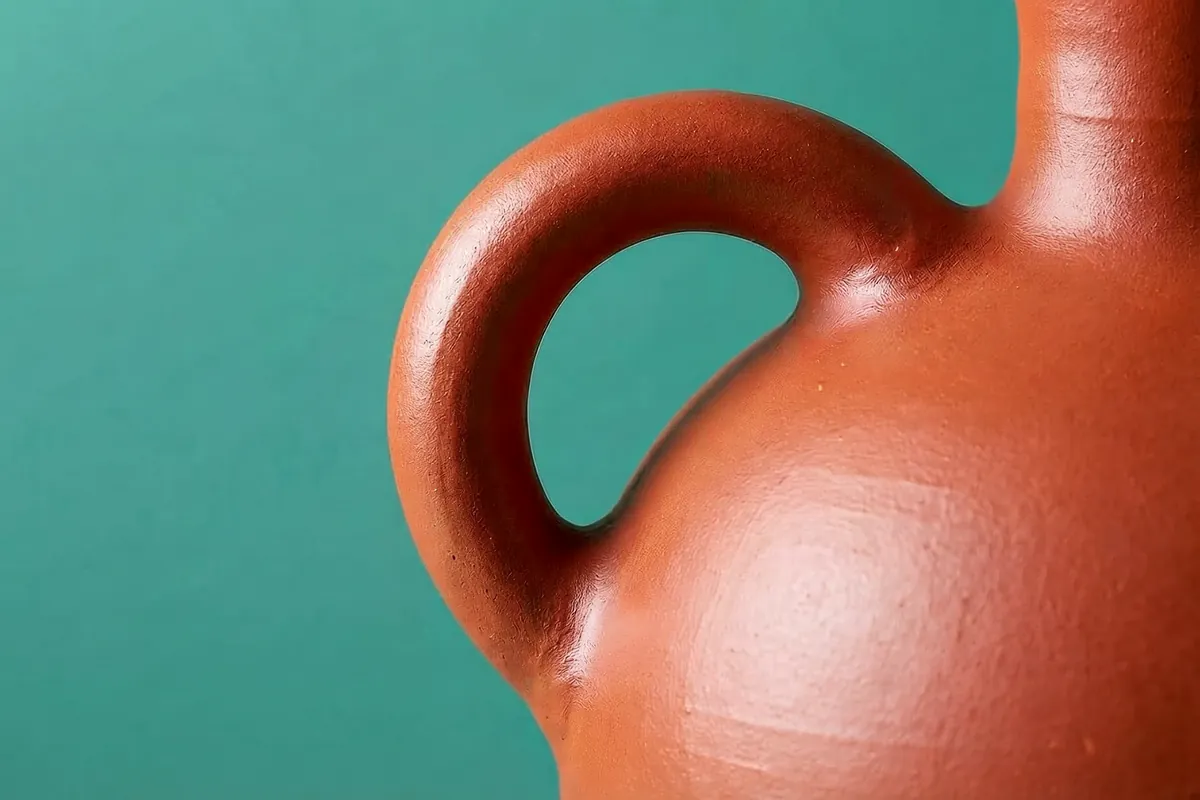
This preview is also a compressed WebP of the actual output. The two new outputs are provided as WebP previews; the PNG download above is the reference image.
4. Inspect both images with the same checklist
Use the original jug image as the comparison reference. A handle close-up naturally crops the jug, so showing less of the body is a framing observation, not automatically an error.
| Check | Prompt A: two-shot wording | Prompt B: one-still wording |
|---|---|---|
| One continuous view or multiple views in one image? | Two side-by-side views in one image | One continuous close-up, with no visible panel division |
| Handle and body attachment visible? | The right view shows the curved handle and adjoining body; not all attachment geometry can be verified from this view | The curved handle and its visible joins with the body are shown; exact geometry is unverified |
| How much of the jug is in frame? | Complete jug on the left; cropped body and handle on the right | Only part of the body and neck is visible; the complete jug is outside the crop |
| Which side is the handle on? | Handle remains to the right of the body in both views, as in the reference | Handle is on the left of the body, unlike the reference |
| Glaze and background compared with the reference? | Red glaze and teal background remain visible; exact surface detail is not established | Red glaze and teal background remain visible; highlights and surface detail differ |
| Added objects or text? | No obvious added prop or text in the preview | No obvious added prop or text in the preview |
Prompt B gave us the requested single close-up, but it changed the visible product orientation. The reference has its handle on the right; B has the handle on the left and the jug body on the right. If your product image must preserve its approved viewing direction, that change is a reason to reject or revise this result. We have not established why it happened.
Inspect the handle opening, its edges and the points where it meets the body. A matching color does not establish identical geometry, and a crop can hide an attachment. Mark hidden details as unverified rather than assuming that they were preserved.
This is a record of what two differently worded requests produced, once each. It does not prove that removing timing words always prevents a multi-view layout, that the close-up wording always works, or that any particular image model handles video prompts better.
5. Choose an image edit or a video sequence
For one product still, open MiniMax H3 Image, choose Edit Image and upload your reference. Copy Prompt B if the handle close-up is the composition you want, then replace the object, visible detail and background with your own. Select one output, check the current total, sign in and actively submit when ready. Review the resulting crop and structure before using it.
For a wide view followed by a detail view, follow the two-shot video tutorial: download the source still, open Image to Video, and upload it as Start Frame. That separate video sample has a visible hard cut, but the cut arrived later than requested. Check the actual transition and timing rather than treating the prompt as an exact edit decision.
minimaxh3.info is an independent service, separate from MiniMax’s official website. This pair of internal image edits did not test website checkout, a customer charge or a guaranteed generation time.