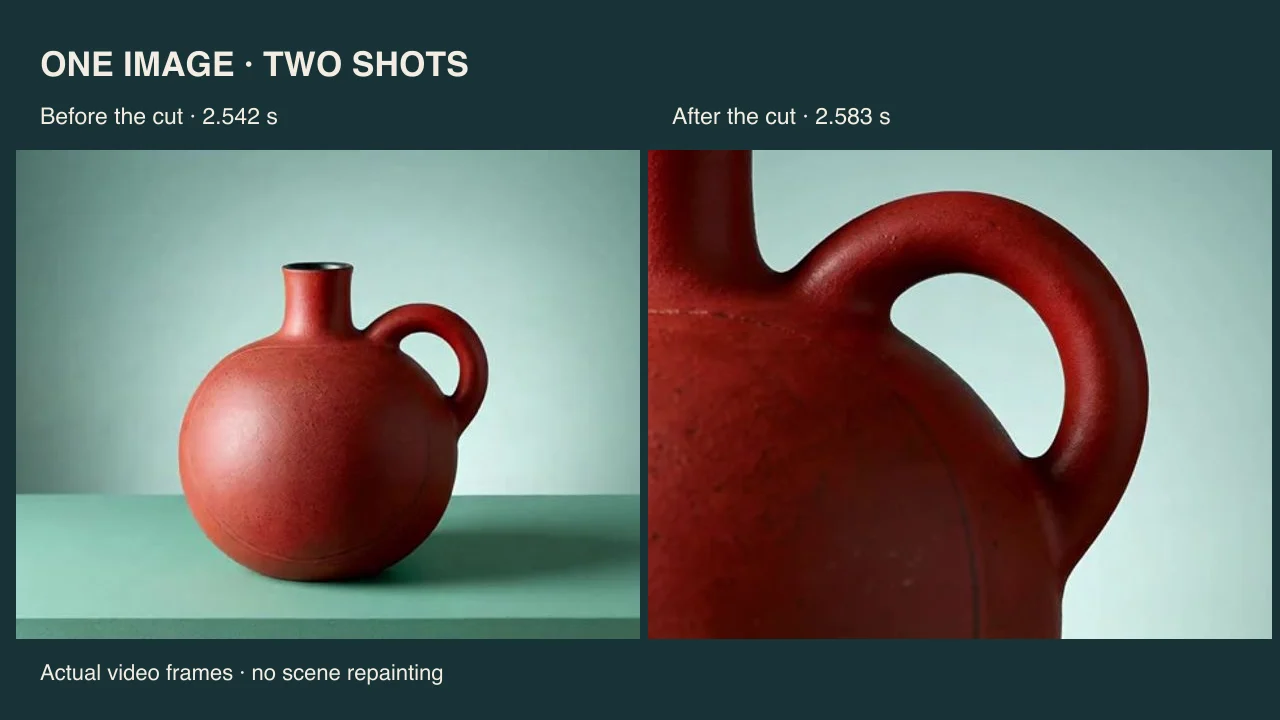
To turn one MiniMax H3 Image still into two video shots, download the still, upload it as Start Frame in Image to Video, and write each shot’s framing plus an explicit transition. In this first sample, “complete jug → hard cut → handle close-up” produced a visible cut. The cut arrived around 2.58 seconds, roughly 0.58 seconds later than the requested two-second mark. Treat the time in the prompt as something to verify, not an edit point already secured.
To follow the setup, prepare your still with the ceramic image-editing tutorial, then open Image to Video. Upload the PNG yourself, choose MiniMax H3 / 480P / 4:3 / 5 seconds, and request one video. Check the current quote before signing in and actively submitting.
1. Give the single still two different framing jobs
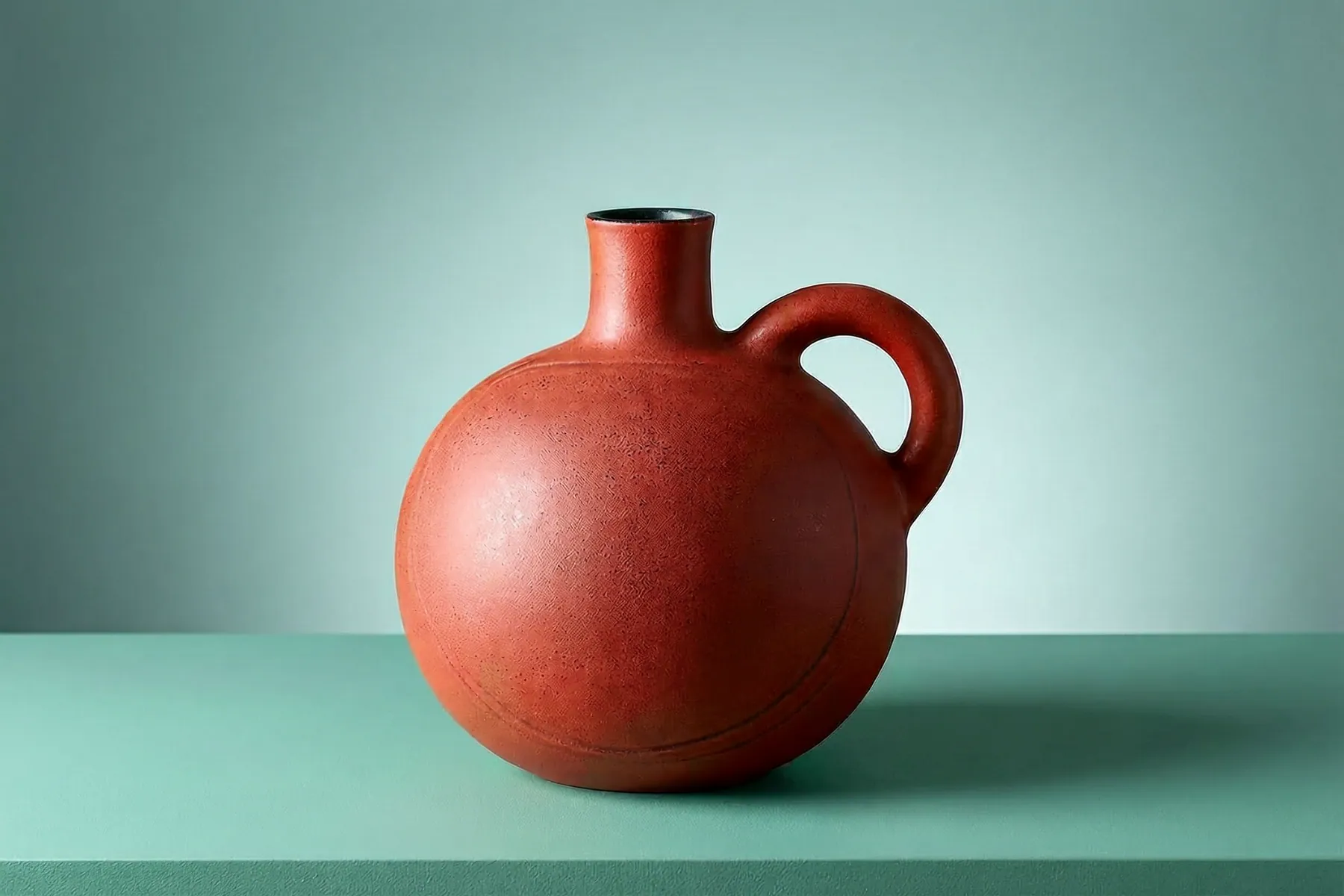
Our input was the existing red glazed ceramic jug on a teal background, a 2496 × 1664 PNG from an earlier H3 Image edit. It shows one open neck and one handle. The first shot should show the complete object; the second should concentrate on the handle and its attachment to the body.
This is an image-to-video task. H3 Image provides the still; the video workspace makes the motion sequence. Manually downloading and uploading the PNG connects those steps.
The complete prompt for this first request was:
Two shots of the same glazed ceramic jug on the teal background. Shot 1: hold a static wide front view of the complete jug for the first two seconds. Then make one hard cut. Shot 2: hold a tight close-up of the single handle and its attachment to the body. Keep the same glaze and teal background. No camera push, dissolve, new objects, or text.The shot numbers establish the order. “Hold a static wide front view” and “hold a tight close-up” specify the two compositions. “Then make one hard cut” asks for an abrupt change between them, while “No camera push, dissolve” names alternatives that would not satisfy this particular request. These are instructions to inspect against the output, not a formula proven to work repeatedly.
2. What the first output actually did
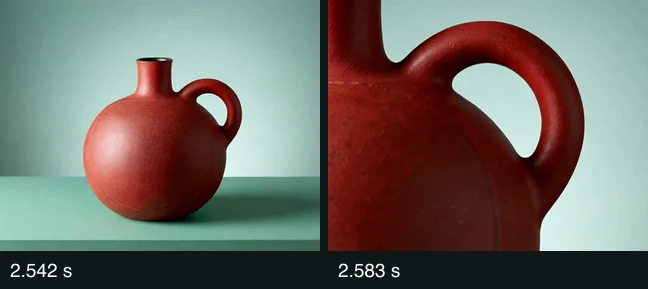
The comparison and cover place extracted source frames side by side; they are explanatory still layouts. The original video itself was not cut together to create this result. The last wide-view frame is at 2.542 s; the next frame, at 2.583 s, is already a handle close-up.
| Request | Observed in this first output |
|---|---|
| Wide view of the complete jug first | The pre-cut frame shows the body, open neck and single handle together. |
| One hard cut to the handle | Adjacent frames jump directly from the wide view to the handle and body attachment; there is no gradual push or blended transition between those two frames. |
| Cut after the first two seconds | The wide view remains at 2.542 s; the close-up begins at 2.583 s. The first close-up frame is about 0.58 s later than requested. |
| Hold a tight close-up | Later sampled frames retain the handle close-up. The rest of the jug lies outside this tighter framing. |
| Same glaze and teal background | Red glaze and the teal background continue across the change. Pixel-identical surface detail and exact geometry were not established. |
At 24 fps, the adjacent-frame interval is about 0.0417 seconds. The visible transition is therefore located between those two sampled source-frame times; it is not evidence that the instruction was executed at exactly 2.000 seconds. If a soundtrack or a presentation needs a precise cut, inspect and adjust the timing in an editor.
Watch or download this actual MP4. The file is the output from this request.
3. Check the downloaded file and the cut separately
The request used a 480P profile, 4:3 preset and five seconds. The decoded output measured 736 × 576, contained 124 frames at 24 fps, and reported 5.167 seconds. Those are this file’s measured properties; the profile label and requested duration do not replace checking the actual delivery. In particular, the delivered pixels are not an exact 4:3 canvas.
A short review can separate three questions:
- Was there a cut? Compare neighboring frames near the change. A wide opening frame and a close final frame alone could also describe a continuous zoom.
- Was it on time? Read the actual frame timestamps, then compare with the requested two-second mark.
- Did the second shot show the useful detail? Look for the handle’s attachment, the crop boundary and changes in the visible glaze. A close-up can hide much of the object even when it follows the shot instruction.
This November 14, 2026 isolated run supplies one first output. It does not establish repeatability, a success rate, a production customer charge or a guaranteed website waiting time. The earlier ceramic tutorial’s continuous push is a different run; it is not an otherwise controlled comparison with this prompt.
4. Write your next request around the edit you need
For your own product image, name what must be visible in each shot and whether the change should be a cut or continuous motion. Then decide how much timing precision your final use needs. If the scene transition matters more than the exact beat, this sample demonstrates a readable wide-to-detail sequence. If the two-second beat is essential, this first result needs timing correction.
Changing the words or generating again is an untested next attempt, not a verified way to remove the delay. Preserve the first result when comparing another version.
If you need to guide the ending frame as well as the opening, compare the first-frame-only and first-plus-last-frame tests before choosing your inputs.
Prepare the still with MiniMax H3 Image or open Image to Video and upload your own start frame. Generation requires sign-in and enough available credits for the current quote. minimaxh3.info is an independent service, separate from MiniMax’s official website.