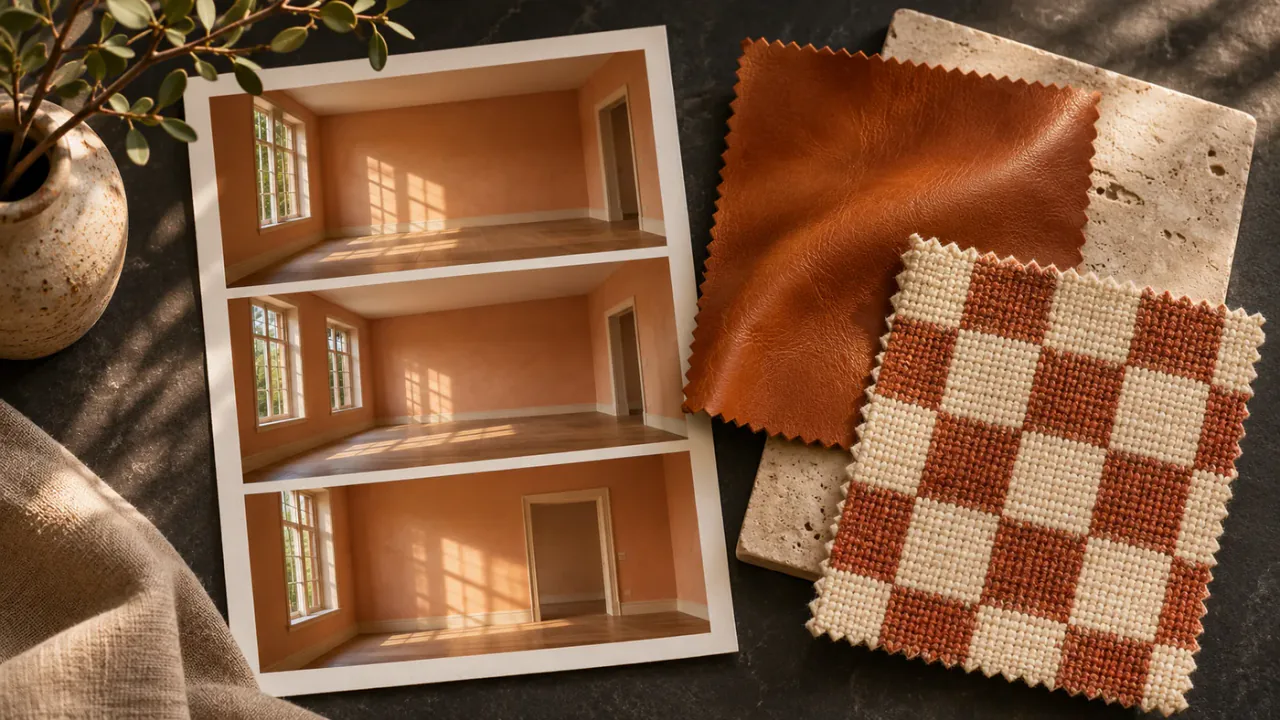
In this documented edit, three references became one furnished room: a room photograph, a chair and a rug. The result contains one chair and one rug, with the door still on the left and the window on the right; that does not establish exact dimensions or product fidelity.
All three inputs are AI-generated. The original edit comes from a single isolated MiniMax H3 Image R1 model run on November 12, 2026, outside the production website’s login and billing flow. Section 5 adds a separate reference-order comparison from November 14. This guide explains how to use the current workspace with those public files. A new run can differ. minimaxh3.info is an independent service, not MiniMax’s official website; the article cover is an illustration, not evidence of this run.
1. How do you edit a still image with multiple references in MiniMax H3 Image?
Use Edit Image. Put the room in Picture 1, the chair in Picture 2 and the rug in Picture 3. This workspace accepts up to eight images including the original. Choosing one output gives you one still PNG; no video is requested.
For a larger product set, compare five product references with and without a separate placement guide. In the eight-image product test, we started from the same baseline set and swapped only input image 7 in one run and only input image 8 in another.
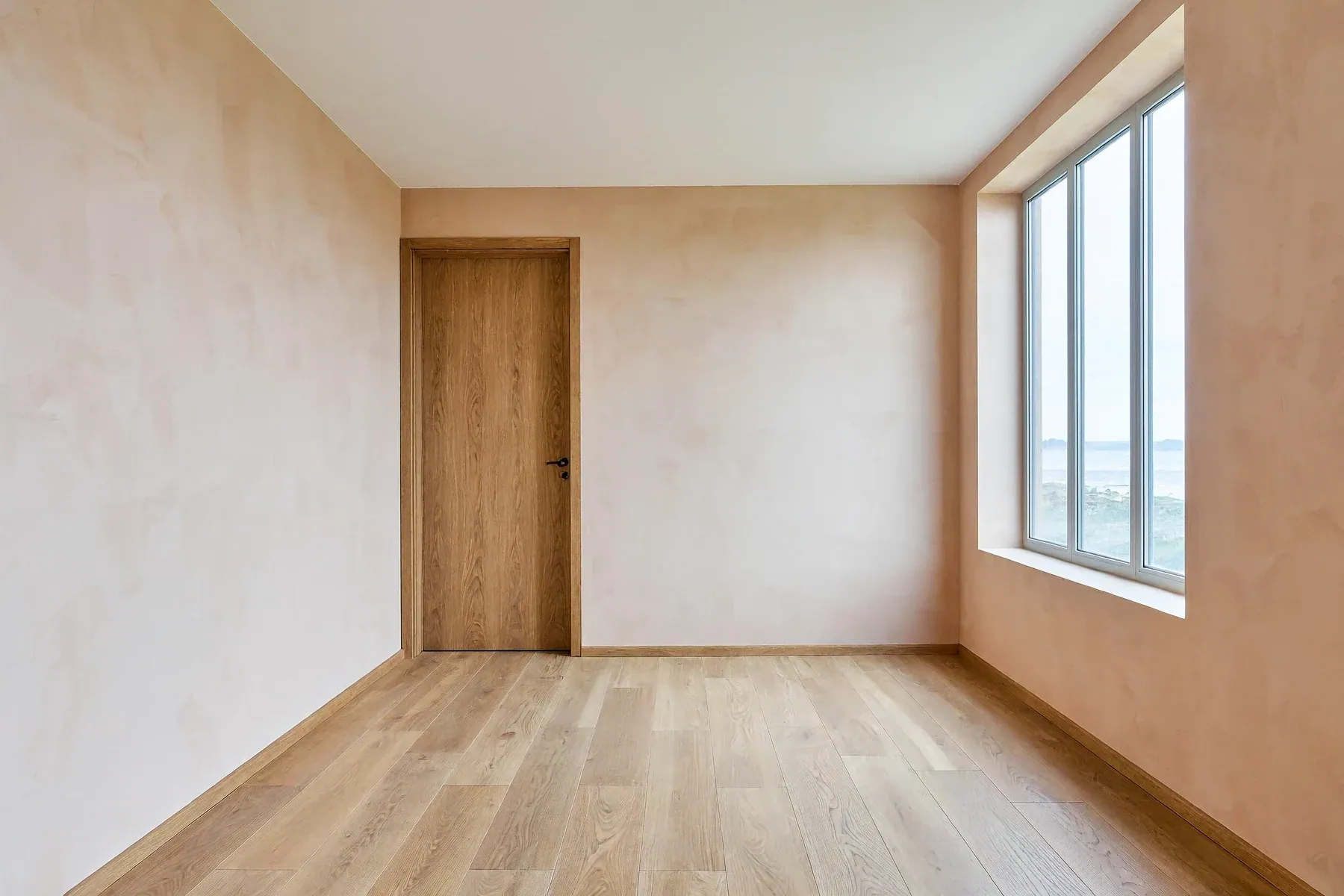
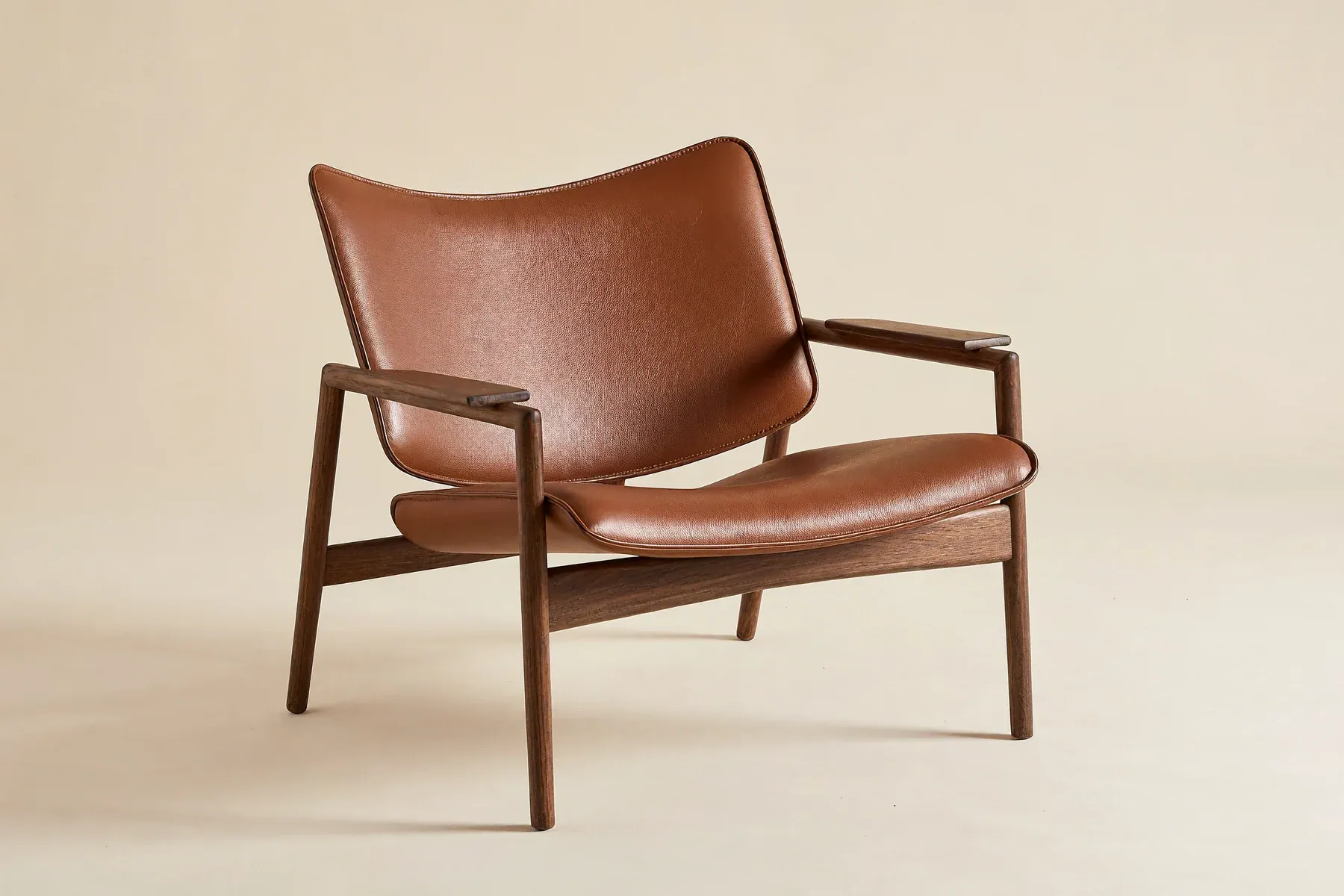
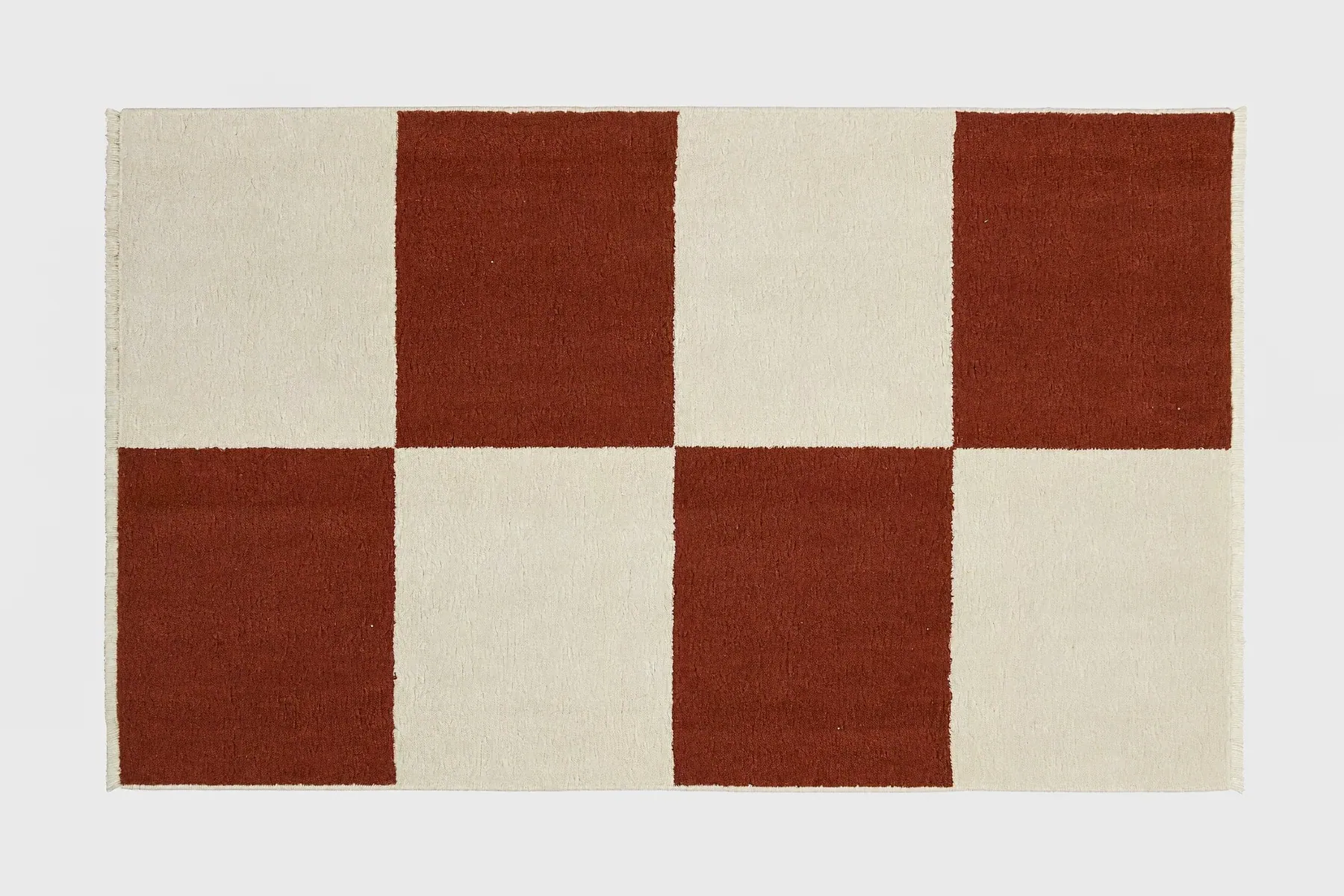
The three images above are display previews. To follow this edit, download the actual inputs in order: Picture 1: room, Picture 2: chair and Picture 3: rug. These three WebPs are byte-identical to the archived inputs for this run, but a new run can still differ. Use images you have permission to process when substituting your own.
| Slot | Role | What to ask it to control |
|---|---|---|
| Picture 1 | Base room | Viewpoint, framing, door, window, walls and floor |
| Picture 2 | Object reference | One chair’s form, brown leather and exposed wood frame |
| Picture 3 | Object reference | One rug’s cream/rust colors and checkerboard pattern |
The chair’s cream studio background is not the intended room. The overhead rug view supplies its appearance, not the camera angle for the finished scene. Say this through the roles rather than asking all three pictures to determine the whole composition.
Before uploading your own inputs, prepare the reference images and check the upload conditions.
2. Load the references in that order
Open the room example and select Try with example images. If asked to replace an existing draft, confirm only when you want this example instead. The three cards should show room → chair → rug.
Loading the public example is not uploading it. It places the references, prompt and settings in a draft; it does not submit a generation task or use credits. To run the edit:
- Sign in normally, then check that the room draft is still the one you want to use.
- Select Prepare example images. Wait until all three reference cards say Uploaded. A public-example preview or an Uploading status is not a finished upload.
- Check Edit Image / 3:2 / Images 1, the three picture numbers and the complete prompt below. Review the current total quote and your available balance.
- Select Edit image only when you want to submit that request.
For your own files, open the workspace, sign in, choose Edit Image, and upload them in the same role order. All three actual inputs for the recorded example are 1800 × 1200 WebPs; its output is a 2496 × 1664 PNG. These are sample dimensions, not a promise about a new output.
Which picture is the original after you rearrange the cards? The first card is labeled Image to edit; the others are Reference. Set as original moves the selected card to Picture 1. The arrow controls Move earlier and Move later move it one position. Check the pictures and their numbers after either action.
On November 17, 2026, we followed these steps in the anonymous English and Chinese workspaces using the public example:
| Action | Picture 1 · Image to edit | Picture 2 | Picture 3 |
|---|---|---|---|
| Load the room example | Room | Chair | Rug |
| On the rug, select Set as original | Rug | Room | Chair |
| On the room, select Set as original | Room | Rug | Chair |
| On the chair, select Move earlier | Room | Chair | Rug |
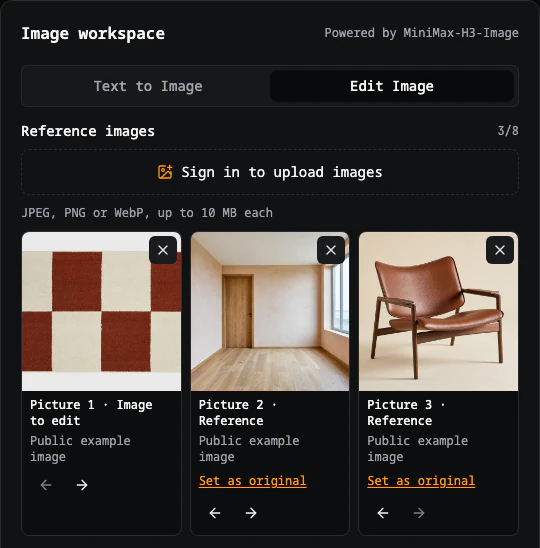
After selecting Set as original on the rug, the anonymous draft shows rug → room → chair. This is the changed order, not the restored room → chair → rug order. No images were uploaded or generated in this check.
Setting the room as the original again did not restore the chair/rug order by itself. The prompt stayed exactly the same through all four draft states: these controls renumber references but do not rewrite its Picture 1/2/3 instructions. For the prompt below, restore room → chair → rug, or deliberately revise every affected picture number before submitting. This was a draft-order check with three equally sized images, without uploading or generating; it does not establish model behavior or how a different source ratio changes the canvas.
3. Copy the prompt, then check the quotation
This is the actual prompt used for the isolated edit:
Create one photorealistic interior from these three ordered references. Use <Picture 1> as the exact base photo: keep its camera position, framing, pale apricot limewash, existing oak door on the back left, single tall window on the right and the existing warm plank floor. Use <Picture 2> as a product reference and add exactly one cognac-brown leather lounge chair with the same exposed dark walnut frame, centered just right of the middle and gently turned toward the camera. Use <Picture 3> as a product reference and add exactly one flatwoven cream-and-rust checkerboard rug on the floor under the chair, its front and side edges clearly visible in the foreground. Both new objects must fit naturally into the room's perspective and scale, with believable floor contact and shadows. Keep the original architecture visible. Cool window light against warm room surfaces. Add no other furniture, objects, people or lettering.It states the base scene first, assigns each added object to its reference number, specifies one of each, and names the floor contact and visible edges to inspect. “Exact” and “keep” are requests, not measurements of what the model preserved.
The November 13, 2026 quote check showed 4 credits per requested Edit Image output: one output showed 4 credits, four showed 16. Three reference images do not mean three requested outputs. These are dated quote checks, not a production charge for the isolated example or a price locked for your next request. After preparing your references, check the current total for one output and ensure your balance covers it before selecting Edit image. Text-to-image was separately quoted at 3 credits per output; credit plans are separate from the per-run quote.
4. Inspect the room, then the furniture
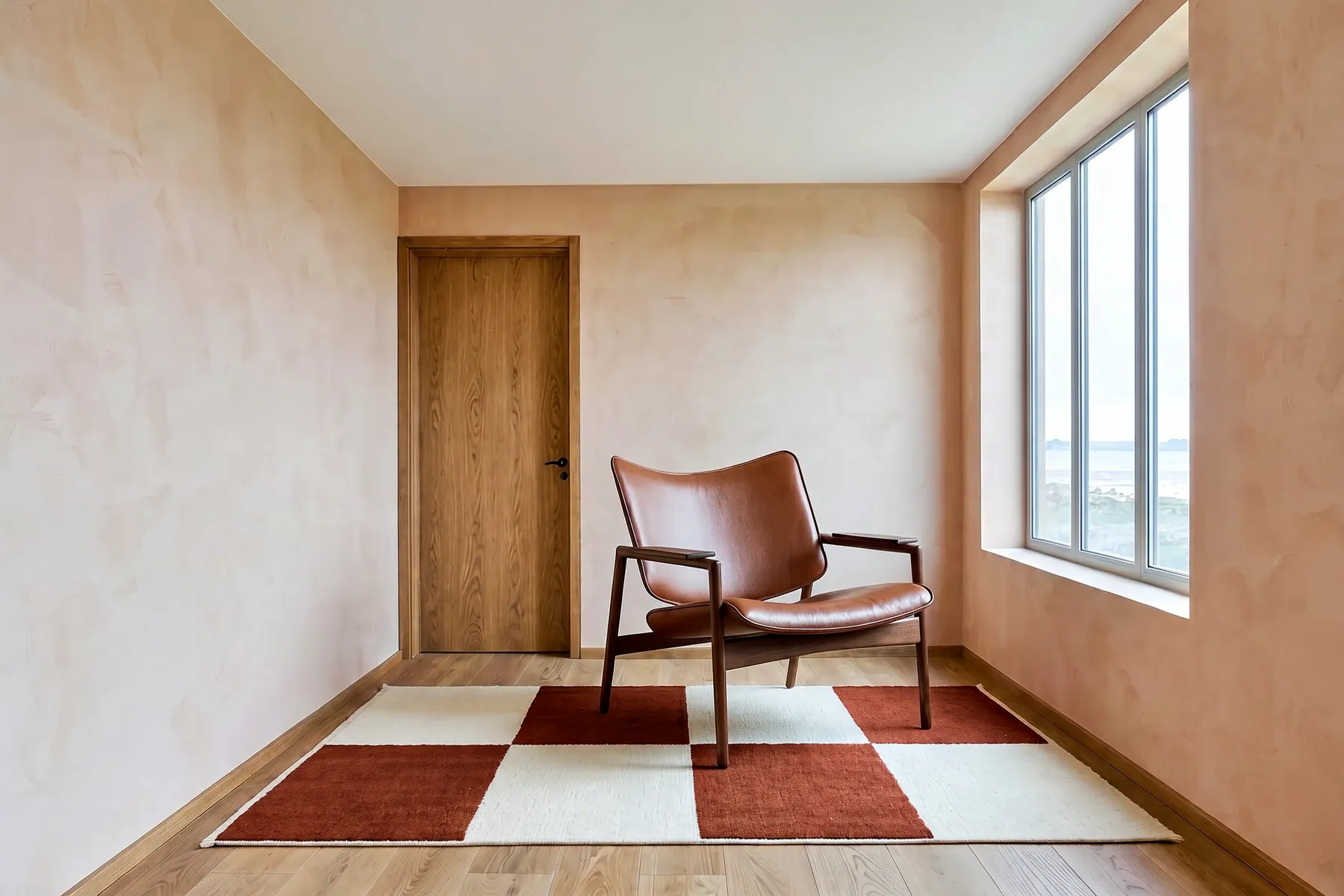
Open the full-size PNG. This is the recorded model output, not a room photograph or a measured furniture layout.
Start with the room landmarks before judging the styling. In this output, one chair and one rug appear; the left door, right window and floor around the rug remain visible. The chair has moved from a studio set into the room, and the rug’s overhead view has been rendered in perspective. We did not measure the room or compare the chair geometry pixel by pixel.
| Check | How to inspect it | Reason to reject or revise |
|---|---|---|
| Room geometry | Compare door position, window, wall corners and floorboard directions with Picture 1 | A moved opening or changed viewpoint breaks the base-scene requirement |
| Chair shape and scale | Compare arms, back, legs and seat; use the door as a visual size reference | Missing parts, implausible proportions or a chair that appears too large |
| Rug placement | Trace the visible edges and see whether the chair sits over it | A folded-looking edge, floating placement or rug cropped against your intent |
| Contact and lighting | Inspect each visible leg’s floor contact and the shadow beneath the chair | Floating legs or light that conflicts with the room |
| Count and omissions | Count chairs and rugs; check for unexpected props | An omitted rug, duplicated chair or added furniture |
| Material detail | Compare leather, wood and checkerboard colors with Pictures 2 and 3 | Changed design details that matter to your purpose |
These are review criteria, not defects all observed in this sample. Visual scale is not a measurement in centimeters. Use this as a concept image, not evidence that particular furniture will fit or that an item’s finish will be reproduced exactly.
5. If the references are in the wrong order, does fixing the picture number help?
In this pair, correcting the numbers did not rescue missing furniture: X already produced a chair and a rug despite its mismatched numbers. Y also produced both, with a visibly larger chair positioned farther right. We did not establish that Y reproduced the references more faithfully.
The original example uses room → chair → rug. For this follow-up, both new requests use room → rug → chair instead. The room stays in Picture 1; the rug is now Picture 2 and the chair Picture 3. The input files themselves stay the same.
| Follow-up | Actual upload order | Text assignment |
|---|---|---|
| X: old numbering | 1 room / 2 rug / 3 chair | Picture 2 for the chair; Picture 3 for the rug—mismatched with the uploads |
| Y: corrected numbering | 1 room / 2 rug / 3 chair | Picture 3 for the chair; Picture 2 for the rug—matched to the uploads |
X keeps the full prompt in section 3 unchanged. To turn X into Y, replace only these two sentences; everything else in that prompt stays unchanged:
- Use <Picture 2> as a product reference and add exactly one cognac-brown leather lounge chair with the same exposed dark walnut frame, centered just right of the middle and gently turned toward the camera.
+ Use <Picture 3> as a product reference and add exactly one cognac-brown leather lounge chair with the same exposed dark walnut frame, centered just right of the middle and gently turned toward the camera.
- Use <Picture 3> as a product reference and add exactly one flatwoven cream-and-rust checkerboard rug on the floor under the chair, its front and side edges clearly visible in the foreground.
+ Use <Picture 2> as a product reference and add exactly one flatwoven cream-and-rust checkerboard rug on the floor under the chair, its front and side edges clearly visible in the foreground.
The November 14, 2026 isolated run requested and returned 2496 × 1664 PNGs, used seed 352206, and made one request and one output per group, with no rerun. It did not test production login, billing or queue behavior. This is a separate comparison from the original November 12 output above. Keeping the seed records the comparison settings; it does not promise identical results in the public workspace or establish a general success rate.
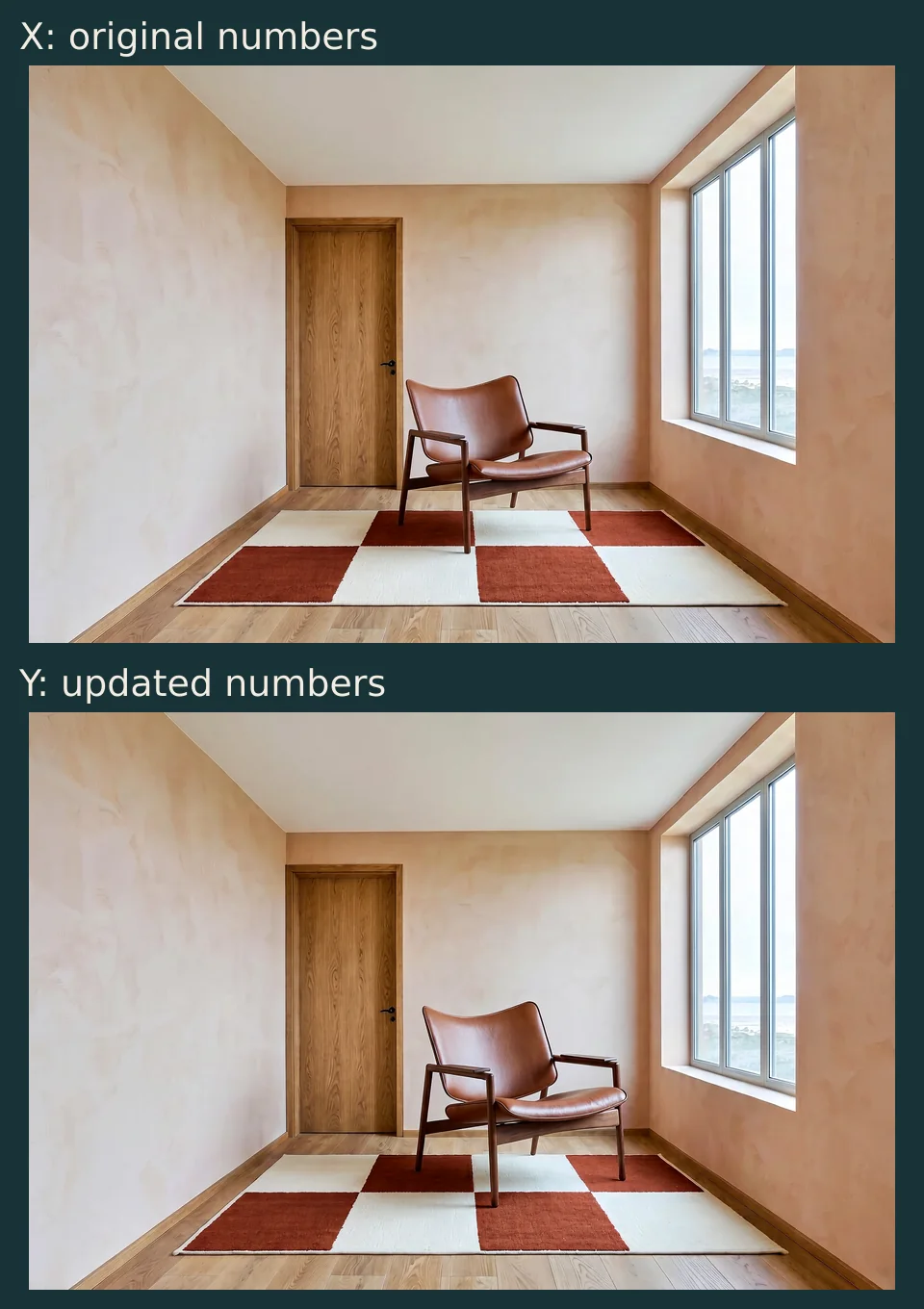
X above, Y below. Both full output canvases are resized equally for this 960 × 1360 comparison, with labels added; neither result is cropped, repainted or corrected. The original November 12 result remains in section 4.
Both new images show a brown leather-looking chair with a dark wood-looking frame and a cream-and-rust rug with large checks. Neither visibly swaps the chair and rug into each other’s roles. The door remains on the left and the window on the right. Y’s chair occupies more of the frame and sits farther right than X’s; the rug colors and broad checkerboard structure look similar. We did not measure furniture dimensions or establish a fidelity improvement.
The prompt already describes the chair’s material and frame and the rug’s colors and pattern in words. These two outputs cannot tell us how the model resolved the conflicting numbers, whether the number correction caused a particular visible change, or how other inputs would behave. Keep the numbering consistent to make your instruction clear, then inspect the actual result; this pair does not prove that numbering is irrelevant or that fixing it guarantees a better image.
To follow this setup in Edit Image, upload the downloaded files manually in the new order: room first, rug second, chair third. The room example loads the original order, so check the visible thumbnails and numbers rather than assuming its prefilled draft is already arranged for this comparison. Keep 3:2 / one output. For X, paste the original prompt; for Y, use the two replacements above and leave the uploads in place. Recheck the current quote before each separate submission.
When comparing outputs, inspect more than whether a chair and rug appear. Trace which reference supplied the chair’s leather and wooden frame, which supplied the rug’s colors and checks, and whether the room’s door and window remain in place. A plausible chair could follow the written description despite the wrong image number. Correct numbering is something to check against the result, not proof that reference details were preserved.
6. Retry for a specific reason
A retry is easier to assess when you name the issue: “keep the door in its original position” or “include the front edge of the rug.” These are suggested revisions, not prompts tested in this example. Change one requirement at a time so you can compare the next result; improvement is not guaranteed.
Check upload order first if the wrong reference seems to dominate. If exact room dimensions or product geometry are essential, do not keep spending credits hoping that a plausible picture becomes a measured plan. Use a workflow that can validate those requirements.
Another request has its own quote. A completed image you dislike is different from an output the service marks as failed; dissatisfaction does not automatically mean a credit return. Download the PNG you choose and retain all three inputs for comparison.
Try the room example or start your own edit, then review the current credit total before generating.
7. Can MiniMax H3 Image remove the chair from this room?
In one website edit, the whole armchair and its obvious contact shadow disappeared, with no obvious chair-leg remnants. The rug, door and window kept a similar overall arrangement, but their surface details changed. Filling the area behind a removed object is a different task from adding furniture or correcting reference numbers.
We used the furnished result shown in section 4 as the only input: the full 2496 × 1664 PNG. On November 18, 2026, we used the normal signed-in workspace with Edit Image / 3:2 / 1 image with that PNG as the sole reference, Picture 1. There was one request and one output, downloaded and fully decoded by two independent image libraries, without a rerun or result repair.
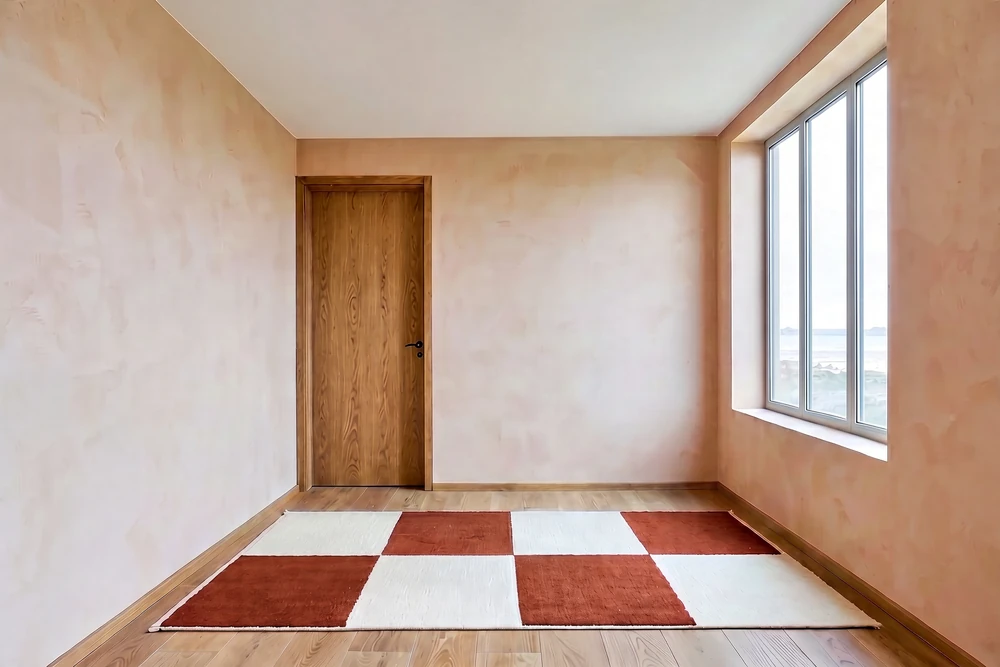
The complete output, shown as a 1000 × 667 WebP preview (56,414 bytes), without cropping. Download the 2496 × 1664 PNG, about 4.1 MB (4,135,412 bytes). Generation metadata was removed; decoded pixels match the native edited output.
The complete submitted instruction
Edit <Picture 1>, the supplied generated room image. Remove the single brown leather armchair in the center-right, including its backrest, seat, arms, all legs and only its own shadow. Leave the space empty, with plausible continuations of the existing beige wall, wooden floor and red-and-cream checked rug. Preserve the already visible rug squares and outer edge, floorboard directions, wooden door and handle, window frames and view, wall texture, lighting, camera position and 3:2 framing as closely as possible. Do not relocate the chair or add a replacement object, crop, add text or change the room style.An independent AI visual observer described two neutrally named images before learning their input/output roles and the requested change. This was model-based independent observation, not a human blind-reading study. We then compared those descriptions with the task and inspected the input and result together.
| Check | What this output showed |
|---|---|
| Chair and shadow | The whole chair and its obvious contact shadow were gone; no obvious legs remained. |
| Rug | The red-brown and cream two-row, four-column check pattern remained recognisable, with visible changes to its surface. |
| Room landmarks | Floorboards, the door and handle, and the three-column window kept a similar overall layout; door wood grain, floor texture and details outside the window showed changes. |
| Previously hidden area | The filled surfaces looked continuous, but the true scene behind the chair is unknown. |
This is plausible completion, not recovery of a known hidden rug or proof that other pixels stayed unchanged. We did not measure exact room geometry or a repeatable removal success rate. The actual executed seed and expanded prompt remain unknown; the instruction above is what we submitted.
Try the same task with a manual edit
This controlled website test used a separate 4-credit test grant, was actually charged 4 credits, and had no refund. It was not a customer purchase; your next request uses the current workspace quote.
- Download the furnished-room PNG above, open MiniMax H3 Image, and sign in normally.
- Choose Edit Image, upload it as Picture 1, and select 3:2 / 1 image. Use the furnished output, not the three separate references from section 1.
- Paste the complete prompt. For a different picture, replace the object, its location and the visible features you want to keep.
- Check the current dimensions, quote and balance, then actively click Edit image. Opening the workspace does not preload or submit this picture.
- Download the result and inspect the empty area, shadows, rug and room details at full size. If unchanged visible pixels are essential, use a conventional selection/compositing workflow and verify the final image instead.