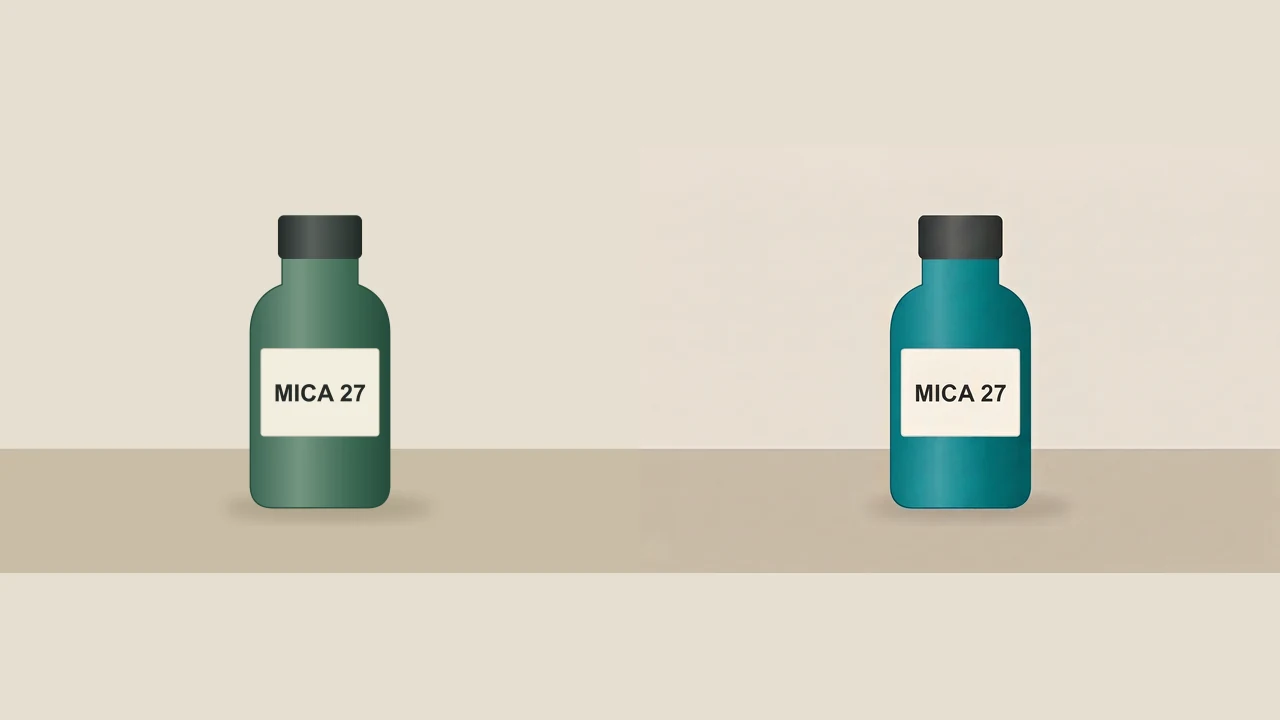
MiniMax H3 Image changed our green test bottle to a recognizable teal, and the cream label still read MICA 27. We requested #008080. Across three bottle regions selected before generation, 1 of 77,800 pixels matched that RGB value exactly. The wall stayed beige to the eye, but its sampled pixels changed too.
The cover compares the actual input on the left with the output on the right. Both show the entire frame. This was one edit of an original bottle illustration. It answers a practical question about previewing a colorway. It does not establish the color of a physical product.
Try the same bottle in Edit Image
Open the MICA 27 product recolor example, then choose Try with example images on that named sample card. It loads this article’s full reference and complete prompt into an Edit Image / 3:2 / one-output draft. Opening the link alone does not replace your draft. If asked to replace existing text or references, choose Cancel to keep them. Sign in and complete any required reference preparation, review the workspace’s current credit quote, and actively submit only when ready. Loading the sample does not generate an image.
To prepare the same draft manually, keep the original download and prompt below:
- Download the reference used in the test. If the image opens in a new tab, save it to your device. It is an original 2496 × 1664 illustration of a green bottle with a black cap. The label reads MICA 27. The earlier background edit used this same input.
- Open the MiniMax H3 Image workspace, choose Edit Image, and upload that file as the first reference. Select 3:2 and one output.
- Paste the exact request below. If you use a different item, replace the bottle description, color code and label text with your own. Check the credit total before submitting.
Edit <Picture 1>. Change only the green bottle body and neck to teal #008080 (RGB 0,128,128). Preserve the bottle silhouette, shape, position, shading and highlights. Keep the entire cream label and the exact text MICA 27 unchanged, including spelling, spacing, digits, font and placement. Keep the black cap, beige wall, tabletop, cast shadow and framing unchanged. Do not recolor the label or cap. Add no objects, text or graphics. Return one image.The recorded run used MiniMax H3 Image on November 15, 2026, through the site's isolated model workflow with seed 352229. The in-browser steps let you repeat the edit with your own inputs. The seed identifies this run. The output may differ when you try it.
How close did the bottle come to #008080?
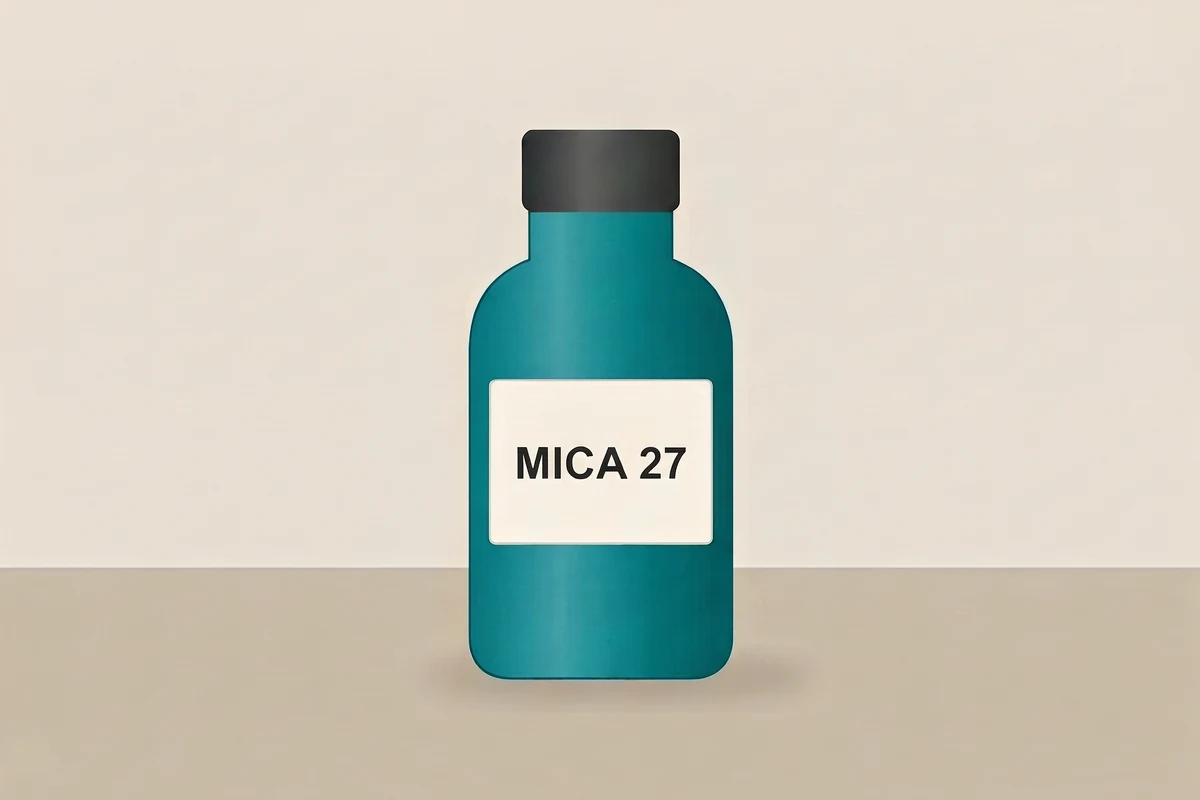
Download the full-resolution output PNG for measurement. It is 2496 × 1664 pixels, the same dimensions as the reference file linked above. The comparison crops show larger areas around the measurement rectangles. The inline WebP is a smaller preview. No retouching was applied to the downloadable output.
For each channel we used the median in each rectangle, averaging the two middle values when they differed. Coordinates start at the top-left of the 2496 × 1664 file. Each rectangle is given as x, y, width, height in pixels. The last column counts pixels with red = 0, green = 128 and blue = 128 in the output.
| Bottle area | Rectangle | Input RGB | Output RGB | Exact matches |
|---|---|---|---|---|
| Neck | 1140, 450, 220, 70 | 94, 131, 110 | 28, 142, 147 | 0 / 15,400 |
| Shoulder | 1120, 600, 220, 120 | 98, 136, 114 | 35, 146, 151 | 1 / 26,400 |
| Lower body | 1120, 1190, 240, 150 | 95.5, 133.5, 111.5 | 34, 144, 150 | 0 / 36,000 |
In all three regions, the median red channel fell sharply. The median green and blue channels both finished above 128. The single exact match in the shoulder does not tell us whether a buyer would perceive the whole bottle as the right color. These numbers describe the digital output in the selected areas, with its shading intact. They do not measure perceptual color difference or establish a repeat success rate.
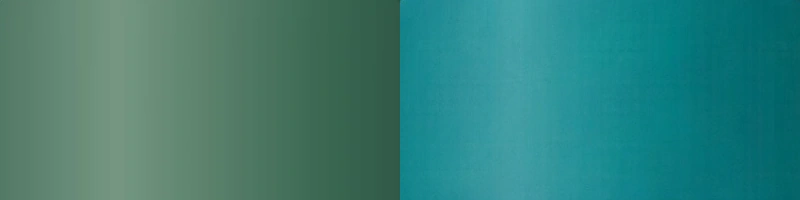
Did the label and background stay the same?
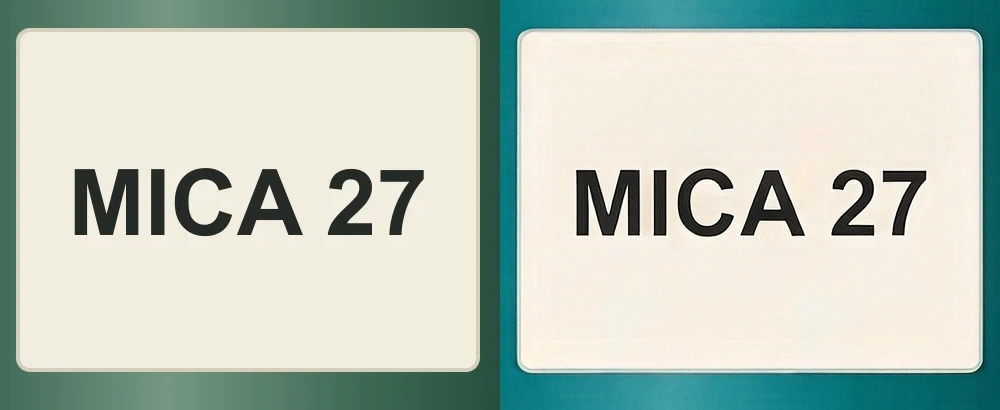
At reading size, the four letters, space and two digits survived in order. Look again at the cream label and the black cap: both remain recognizable. In a cap patch (1120, 300, 240, 90), the median RGB moved from 67.5, 77, 72 to 76, 77, 76. In the label rectangle (1030, 810, 435, 300), only 4 of 130,500 pixels had identical RGB in the input and output. That is a different test from whether the text is readable.
The beige wall is another useful control. Its median RGB moved from 230, 223, 209 to 231, 222, 210 in the rectangle (250, 300, 500, 500). You might accept that for a mockup; a workflow that needs the exact original background would need a separate masking or compositing step.
Check a color variant before using it in a listing
Open the full-resolution PNG and the original reference side by side at 100%. Read the label, check the shoulder and cap outline, and compare the wall and shadow. Then sample the bottle. A lit object has highlights and shadows, so a single color value cannot describe its whole surface. A buyer still needs an accurate picture of the physical item. For a color-critical listing, compare your candidate with a photograph of the actual variant under consistent light.
For a second variant, return to the original reference and change the requested color in the prompt. That keeps changes from your first output out of the next input. Open the image workspace.